
Whether you are looking to sell your device, upgrade its hardware, or check if it meets the requirements for a new game, knowing your machine’s internals is essential. Even for those owning high performance laptops, regular check-ups on your system’s health ensure you are getting the most out of your investment.
In this guide, we will answer common questions like "how do I find the model of my laptop?" and walk through exactly how to analyze your laptop specs.
1. How Do I Find My Laptop Model?
"Where can I find a laptop model number?" is one of the most common questions users have when looking for drivers or replacement parts. The manufacturer name (like Acer) is usually on the lid, but the specific laptop spec and model details are found elsewhere.
Method A: Check Laptop Model via Physical Sticker
If you are wondering, "where can I find laptop model number information physically?" start by flipping your device over. Most manufacturers place a sticker on the bottom casing that lists the Model Name and Serial Number (S/N).
Method B: How Check Laptop Model Digitally
If the sticker is missing, you can check laptop model details through Windows:
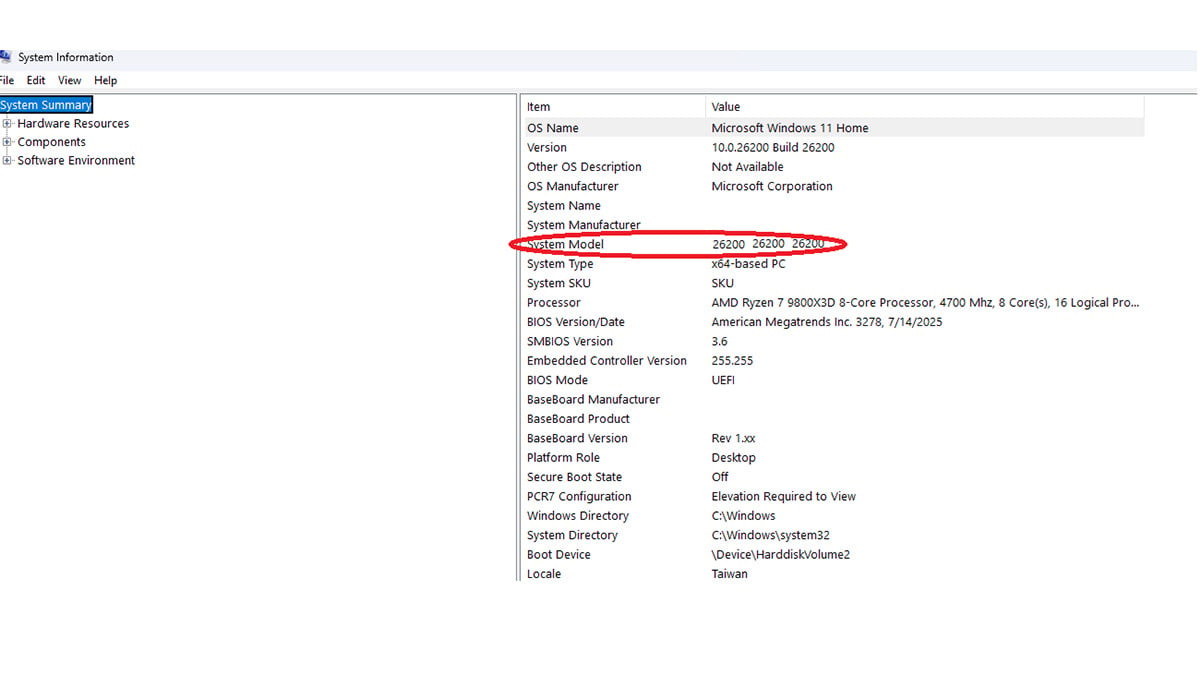
- Press Windows Key + R, type msinfo32, and hit Enter.
- Look for System Model in the summary list. This is the most reliable way to find the laptop model without needing to look for a physical label.
2. What Type of OS Do You Have?
Your Operating System (OS) determines your user interface and software compatibility.
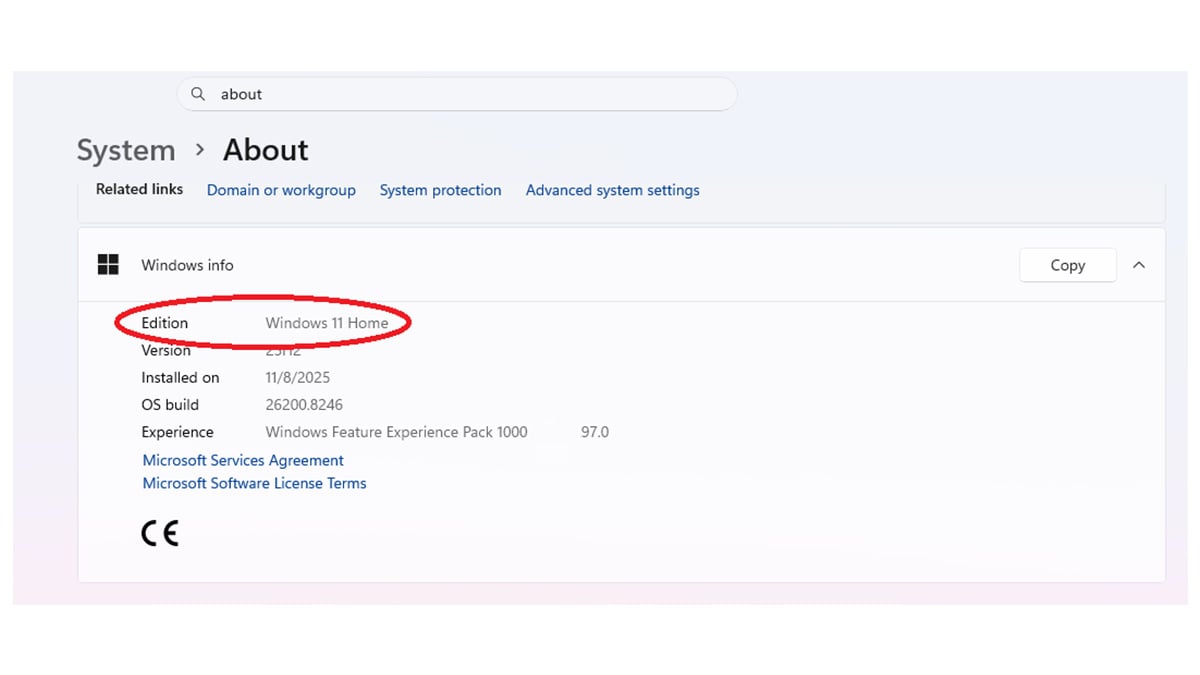
- Go to Settings > System > About.
- Under Windows specifications, check your Edition (e.g., Windows 11 Home).
- Check the System type to see if you are running a 64-bit or 32-bit OS.
3. How to Check Laptop Specs

Knowing how to check laptop specs is the first step in troubleshooting or upgrading. If you specifically want to know how to check laptop specs in Windows 11, the process is quite simple.
- The Settings Menu: Navigate to Settings > System > About. This gives you a clean overview of your CPU and RAM.
- Task Manager: Press Ctrl + Shift + Esc and click the Performance tab. This allows you to see your hardware in action, including your GPU (Graphics Card) and Disk speeds.
Understanding every laptop spec, from the processor generation to the type of RAM, helps you determine if your machine is still up to modern tasks.
4. How to Check Laptop Battery Performance
A laptop is only as good as its portability. Over time, batteries lose their ability to hold a charge. To see how yours is holding up, you can generate a hidden "Battery Report."
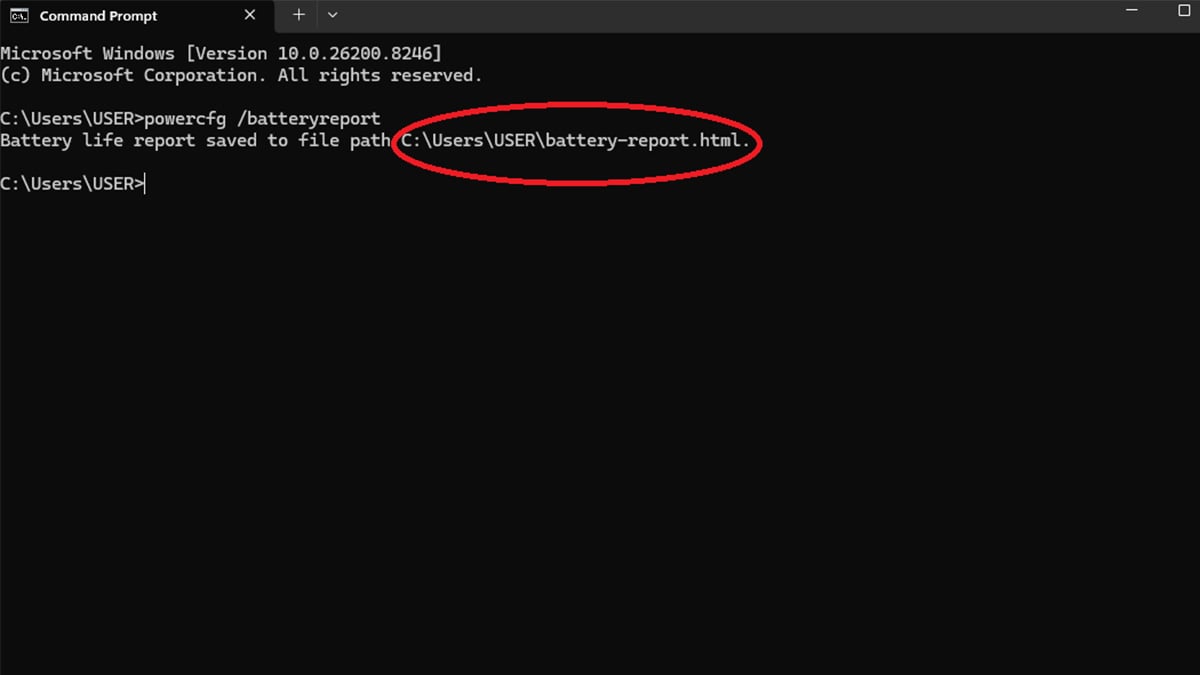
- Right-click the Start button and select Terminal (Admin) or Command Prompt (Admin).
- Type powercfg /batteryreport and press Enter.
- Open the file path provided (usually a .html file) in your web browser. It will show you the Design Capacity versus the Full Charge Capacity, which reveals how much the battery has degraded.
5. Windows System Performance Rating

You can score your PC’s health using the Windows Experience Index. This provides a score from 1.0 to 9.9 based on your hardware's capabilities.
To see your score:
- Search for PowerShell, right-click it, and select Run as Administrator.
- Type Get-CimInstance Win32_WinSAT and hit Enter.
- The WinSPRLevel is your overall score, determined by your lowest-performing hardware component.
- Look at the results. You will see scores for:
- CPUScore (Processor)
- MemoryScore (RAM)
- GraphicsScore (Visuals)
- DiskScore (Hard drive speed)
- WinSPRLevel: This is your overall "base score," determined by your lowest-performing component.
What do the numbers mean?
- 1.0 – 3.0: Basic functionality (web browsing and word processing).
- 4.0 – 6.0: Solid performance for multi-tasking and office work.
- 7.0 – 9.9: High-end performance suitable for gaming, video editing, and heavy workloads.
For more details check out our full guide “How to Check Your PCs Performance Score Using Windows Experience Index”.
6. How to Improve Laptop Performance
Once you have reviewed your laptop specs and performance rating, you might find that your machine is underperforming. Depending on your technical comfort level, there are several ways to boost speed:
- Software Tweaks: You can make specific Windows 11 Registry Editor changes to remove bloatware and improve system responsiveness.
- Thermal Management: If your laptop is running hot, you might consider undervolting your PC. This reduces heat and can lead to more stable performance.
- Pushing the Limits: For those who need maximum power, CPU overclocking can provide a significant boost, though it should be done carefully.
Conclusion
By taking a few minutes to check laptop model details and internal laptop specs, you gain a better understanding of what your machine can handle. If your current device no longer meets your needs even after optimization, it might be time to upgrade to a newer high performance laptop that can handle modern workloads with ease.
FAQ: Frequently Asked Questions
How do I find my laptop model if the sticker is peeled off?
The easiest way is to use the System Information tool. Press the Windows Key + R, type msinfo32, and look for "System Model."
Will overclocking my CPU void my warranty?
In many cases, yes. Overclocking pushes hardware beyond factory limits, so it should only be attempted if you understand the risks. Always check your manufacturer's warranty policy first.
What is the most important laptop spec for speed?
While the CPU is the "brain," having an SSD (Solid State Drive) and at least 8GB to 16GB of RAM are the most noticeable factors for daily speed and multitasking.
How often should I check my laptop's performance score?
It is a good idea to check your performance score or battery health every 6 months to ensure no background software or hardware degradation is slowing you down.
Recommended Products








