
Knowing your laptop’s specs helps you understand what your system can actually do. Whether you are checking game requirements, diagnosing slow performance, or deciding if it is time for an upgrade, your hardware details are the first thing you should look at. If you are using Windows 11, you already have everything you need built in. No downloads or third-party tools are required.
This guide walks through the easiest and most reliable ways to check your laptop specs in Windows 11, starting with quick overviews and moving into more detailed options.
1. Use Settings for a quick system overview

This is the fastest way to see your core laptop specs.
Open Start, then Settings, select System, and click About.
Here you will find your processor model, installed RAM, system type, and Windows 11 version. This view is ideal for quick compatibility checks or confirming basic hardware, but it does not show detailed graphics or storage information.
2. Use Task Manager for CPU, GPU, and RAM details
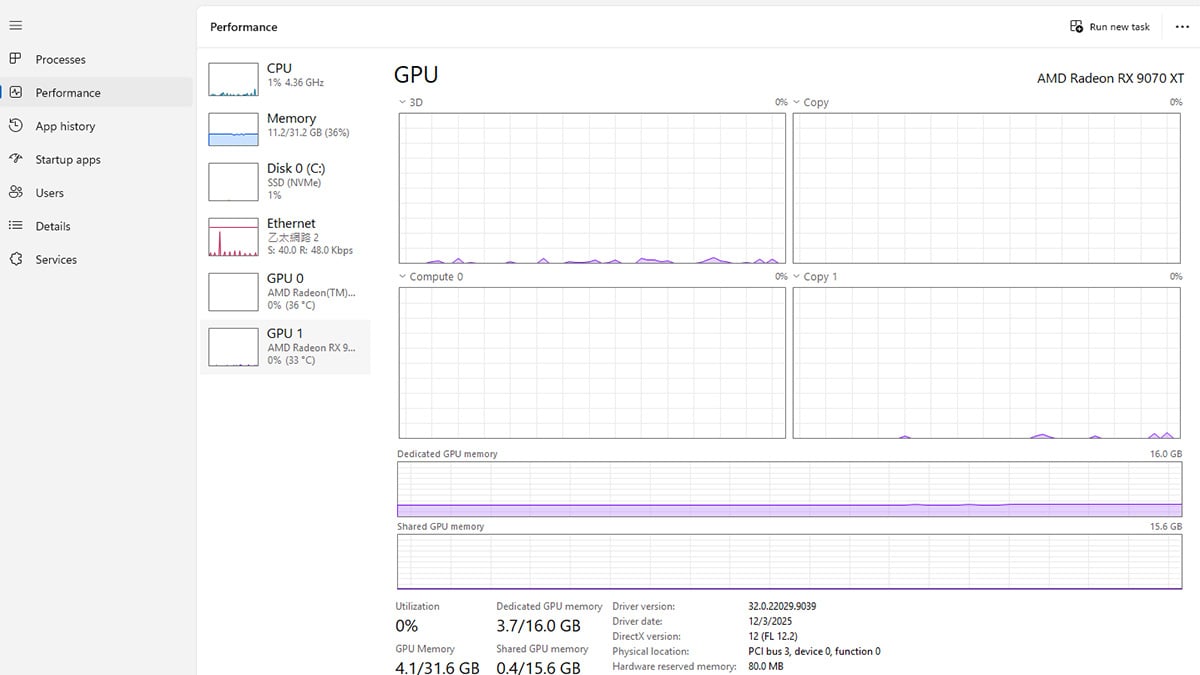
Task Manager is the most useful tool for performance-related specs.
Press Ctrl + Shift + Esc, then switch to the Performance tab.
From here, you can click through each component:
- CPU shows your processor name, core count, and clock speed
- Memory shows total RAM, speed, and usage
- GPU shows your graphics card model and video memory
- Disk shows whether you are using an SSD or HDD
If you care about gaming, content creation, or system responsiveness, this is the most important screen to check.
3. Use DirectX Diagnostic Tool for graphics details
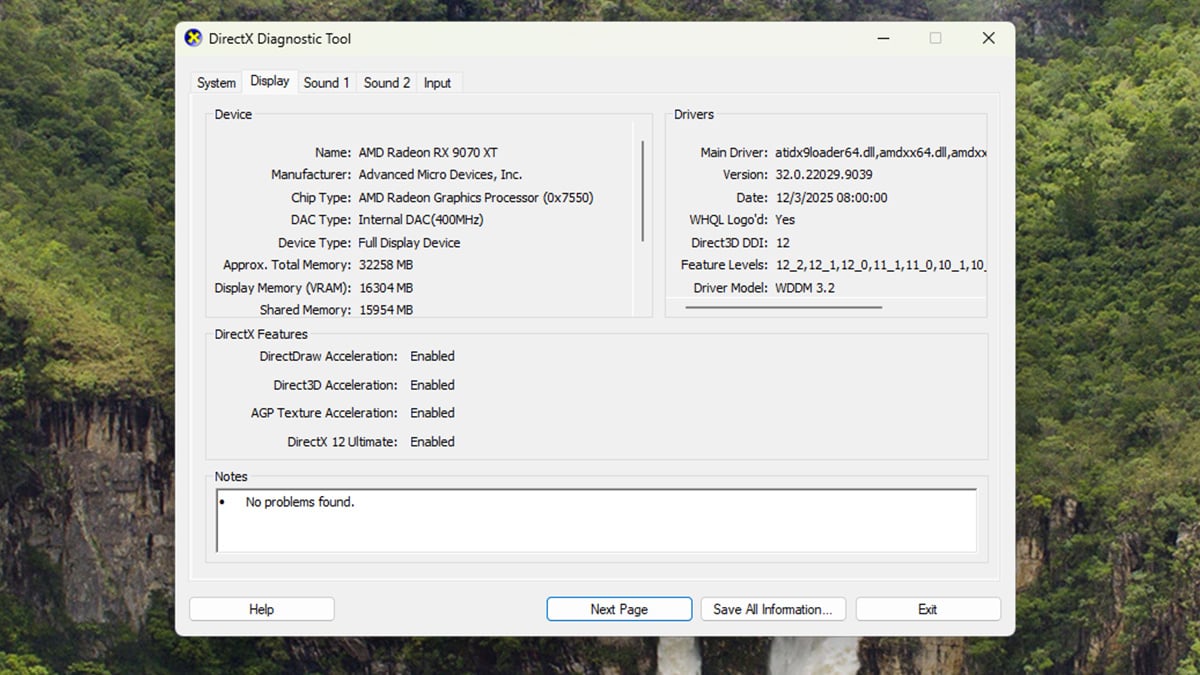
If you want precise graphics information, including driver versions, use DirectX Diagnostic Tool.
Press Windows + R, type dxdiag, and press Enter.
- The System tab lists your CPU and memory.
- The Display tab shows your GPU model, driver version, and VRAM.
This tool is especially helpful when troubleshooting games or graphics-related issues.
4. Use System Information for full hardware specs
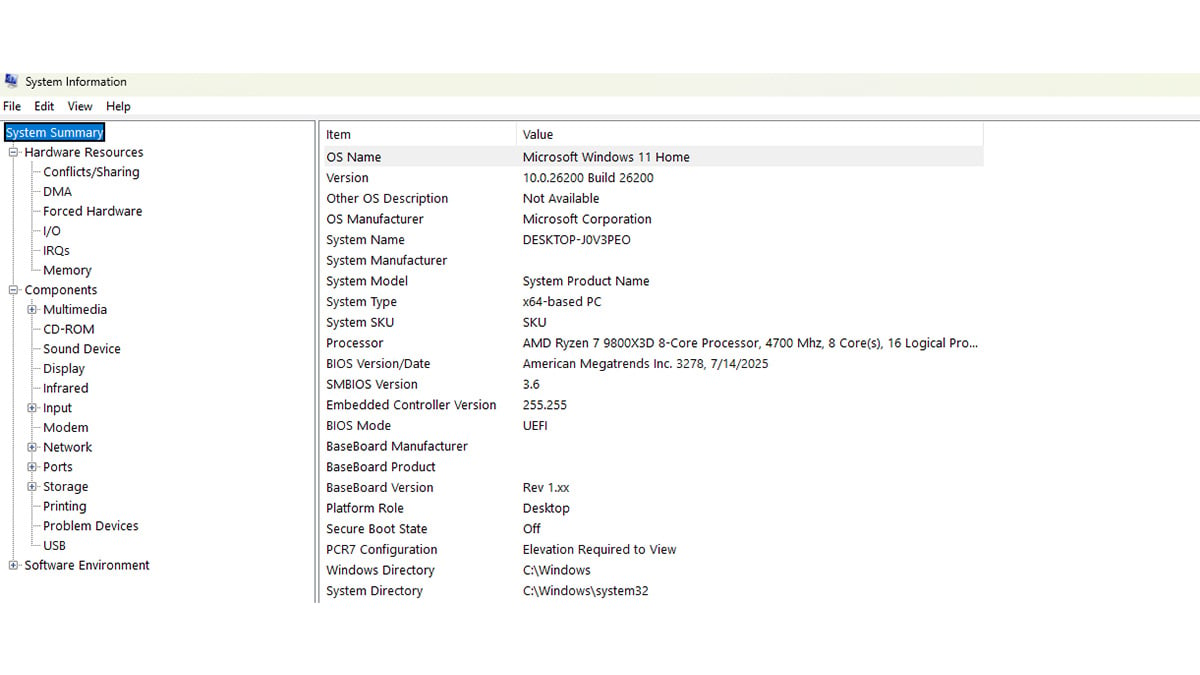
For a complete hardware breakdown in one place, use System Information.
Press Windows + R, type msinfo32, and press Enter.
This window shows:
- Processor and motherboard details
- Installed memory
- BIOS version
- Storage devices and connected hardware
This is the best option if you need detailed specs for support, upgrades, or advanced troubleshooting.
The laptop specs that matter most in Windows 11
If you do not want to dig through everything, focus on these four components:
- The CPU determines overall speed and multitasking ability.
- The RAM affects how smoothly apps run and how many you can keep open.
- The GPU is critical for gaming, creative work, and video playback.
- The storage type matters more than capacity. SSDs are dramatically faster than HDDs.
These four specs explain most performance differences between laptops.
When should you check your laptop specs?
You should check your specs if Windows 11 feels slow, a game or app will not run properly, you are installing new software, or you are considering a new laptop. Knowing what you have makes it much easier to decide whether to optimize your system or replace it.
Conclusion
Windows 11 makes it easy to check your laptop specs once you know where to look. For quick answers, the Settings app is enough. For performance and gaming details, Task Manager and DirectX Diagnostic Tool give you deeper insight. For full technical information, System Information shows everything in one place.
Spending a few minutes checking your specs can save hours of frustration later and helps you make smarter decisions about upgrades, software, and performance expectations.
FAQ
How do I quickly check my laptop specs in Windows 11?
The fastest way is to open Settings, go to System, and select About. This shows your CPU, installed RAM, system type, and Windows 11 version in one place.
Where can I find my graphics card information in Windows 11?
Open Task Manager by pressing Ctrl + Shift + Esc, then go to the Performance tab and select GPU. You can also type dxdiag into the Run dialog for detailed graphics and driver information.
How do I know if my laptop has an SSD or an HDD?
Open Task Manager, select the Performance tab, and click Disk. Windows 11 will clearly label the drive as an SSD or HDD.
What specs should I check before installing a game or app?
Focus on your CPU, RAM, GPU, and storage type. These four components determine whether software will run smoothly or at all.
Why does my laptop feel slow even if the specs look fine?
Performance issues can come from background apps, limited RAM, thermal throttling, or slow storage. Checking Task Manager’s usage graphs can help identify the bottleneck.
Do I need third-party software to check laptop specs?
No. Windows 11 includes everything you need through Settings, Task Manager, DirectX Diagnostic Tool, and System Information.
What information should I write down or screenshot?
At minimum, note your CPU model, total RAM, GPU name, and storage type. This is usually enough for support, upgrades, or compatibility checks.
How often should I check my laptop specs?
You typically only need to check them when installing new software, troubleshooting performance issues, or considering an upgrade or replacement.
Recommended Products

Acer Nitro V 15 (RTX 5050)
Buy Now |

Acer V 16S AI (RTX 5060)
Buy Now |

Predator Triton 14 AI (RTX 5070)
Buy Now |
|---|








