
RAM has quietly become more expensive over the past year, driven by tightening DRAM supply, increased demand from AI servers, and manufacturers scaling back lower-margin consumer production. For everyday PC users, this means upgrading memory is no longer as cheap or as painless as it once was. As a result, optimizing the RAM you already have on Windows 11 has become more important than ever. With the right settings and a few system-level adjustments, it is possible to reduce unnecessary memory usage, improve responsiveness, and extend the useful life of your current hardware before committing to a costly upgrade.
How Windows 11 uses RAM
Windows 11 is designed to take advantage of available memory rather than leaving RAM idle. The operating system actively caches frequently used files, applications, and system processes in memory to improve responsiveness. This means higher RAM usage on an idle system is not always a problem. In many cases, Windows will automatically release cached memory when an application actually needs it.
Problems arise when background apps, startup programs, or poorly optimized software consume memory unnecessarily. When available RAM runs low, Windows relies more heavily on virtual memory stored on your SSD, which is significantly slower than physical RAM. This is when users start to notice stuttering, slow app switching, longer load times, or reduced performance in games and productivity workloads.
Understanding this behavior is important because optimizing RAM in Windows 11 is less about “freeing” memory at all costs and more about preventing waste so your system can prioritize the tasks that actually matter.
How to check your current RAM usage in Windows 11
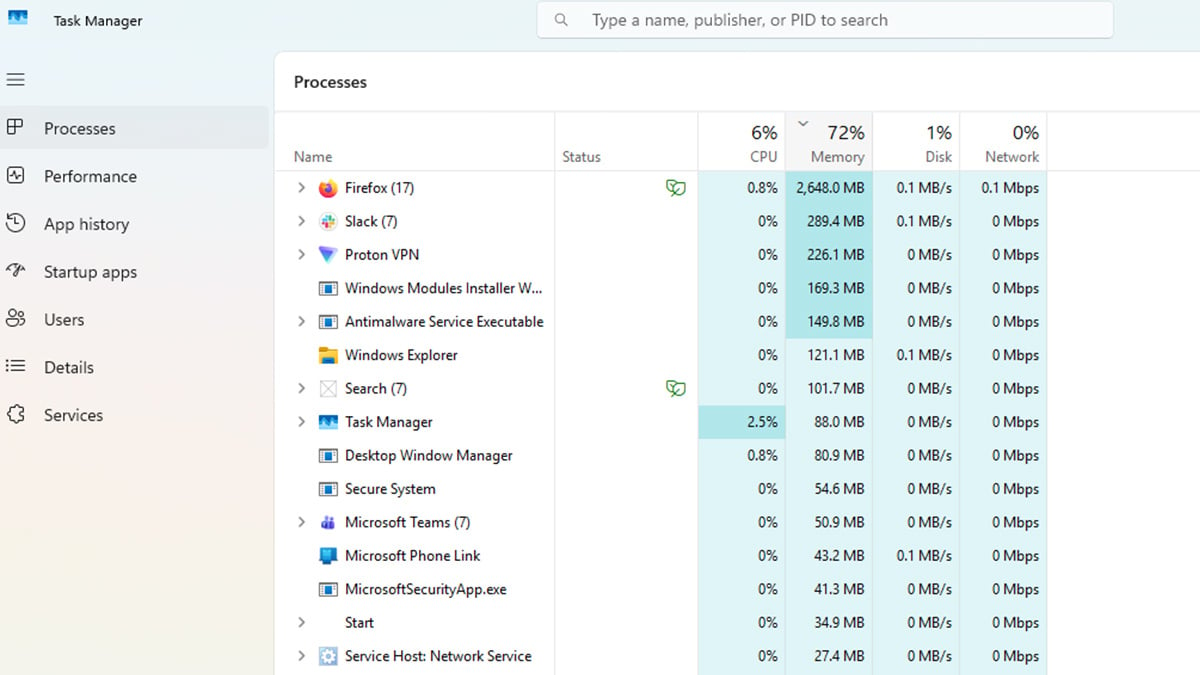
Before making any changes, it is important to understand how much memory your system is actually using and what is consuming it. Windows 11 includes built-in tools that make this easy, without requiring third-party software.
Open Task Manager by pressing Ctrl + Shift + Esc, then switch to the Performance tab and select Memory. Here, you can see how much RAM is installed, how much is currently in use, and how much is available. This view also shows memory speed, form factor, and whether your system is running in single- or dual-channel mode.
Next, move to the Processes tab and click the Memory column to sort apps by usage. This helps identify programs that are consuming large amounts of RAM in the background. Web browsers, game launchers, cloud sync tools, and messaging apps are common culprits. On a healthy system, idle memory usage should typically stay well below half of your total installed RAM.
This step matters because Windows, developed by Microsoft, is generally efficient at managing memory on its own. If RAM usage is already reasonable, aggressive “optimization” can do more harm than good. If usage is consistently high at idle, however, it is a clear signal that background software is wasting memory and needs to be addressed.
Five ways to optimize your RAM in Windows 11
Before getting into actual optimization, it is worth clearing up a persistent myth: you cannot download more RAM. Physical memory is a hardware component installed on your motherboard, and no website, app, or “RAM booster” can increase it. Many of these tools simply force Windows to clear cached memory, which often makes performance worse by causing the system to reload data it was already managing efficiently. Real RAM optimization in Windows 11 is about reducing waste, improving how memory is allocated, and ensuring your existing hardware is running as intended.
1. Disable unnecessary startup apps

Startup apps are one of the biggest and most overlooked sources of RAM usage. Many programs register background services that load automatically every time Windows boots, even if you rarely open the app itself.
Open Task Manager, go to Startup apps, and review each entry carefully. Disable anything that is not essential to system operation, such as game launchers, auto-updaters, RGB control software, and messaging apps. After restarting, you should see lower baseline memory usage and faster boot times. This also gives Windows more headroom to cache useful data instead of juggling background processes.
2. Restrict background app permissions
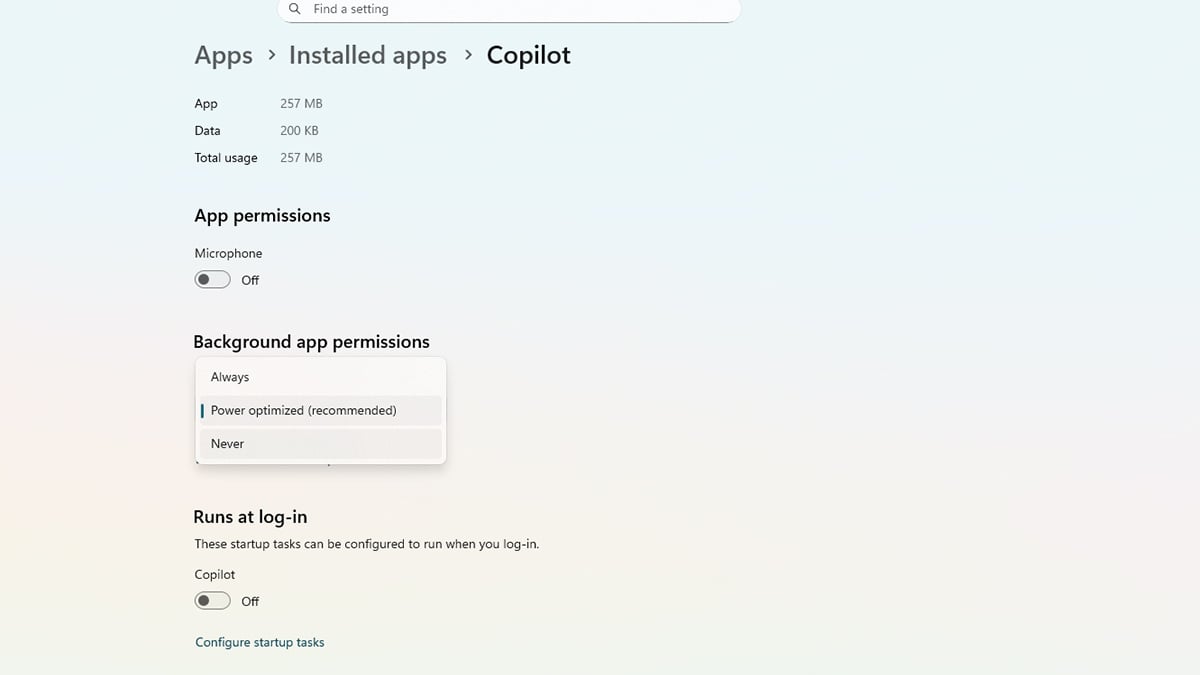
Even when not listed as startup apps, some programs continue running background processes throughout the day.
Open Settings → Apps → Installed apps, select an application, then choose Advanced options. From here, set Background app permissions to Never for apps you do not need constantly active. This is especially useful for cloud sync tools, media apps, and secondary browsers. Over long sessions, limiting background permissions prevents gradual memory creep that can slow down your system.
3. Make sure your RAM is running at the correct speed
Many Windows 11 PCs ship with RAM running below its advertised speed due to conservative default BIOS settings.
Restart your system and enter the BIOS or UEFI menu. Enable XMP on Intel platforms or EXPO on AMD platforms to allow your RAM to run at its rated frequency and timings. This does not increase capacity, but it significantly improves memory bandwidth and latency, which can have a noticeable impact on gaming, multitasking, and content creation workloads.
4. Optimize browser and extension behavior
Web browsers are among the most RAM-hungry applications on modern systems.
Limit the number of active tabs, remove extensions you no longer use, and enable built-in features such as sleeping or inactive tabs. Each extension runs its own background scripts, and poorly optimized add-ons can consume large amounts of memory over time. If you frequently multitask with many browser tabs open, improving browser discipline can reclaim several gigabytes of RAM.
5. Let Windows manage virtual memory properly
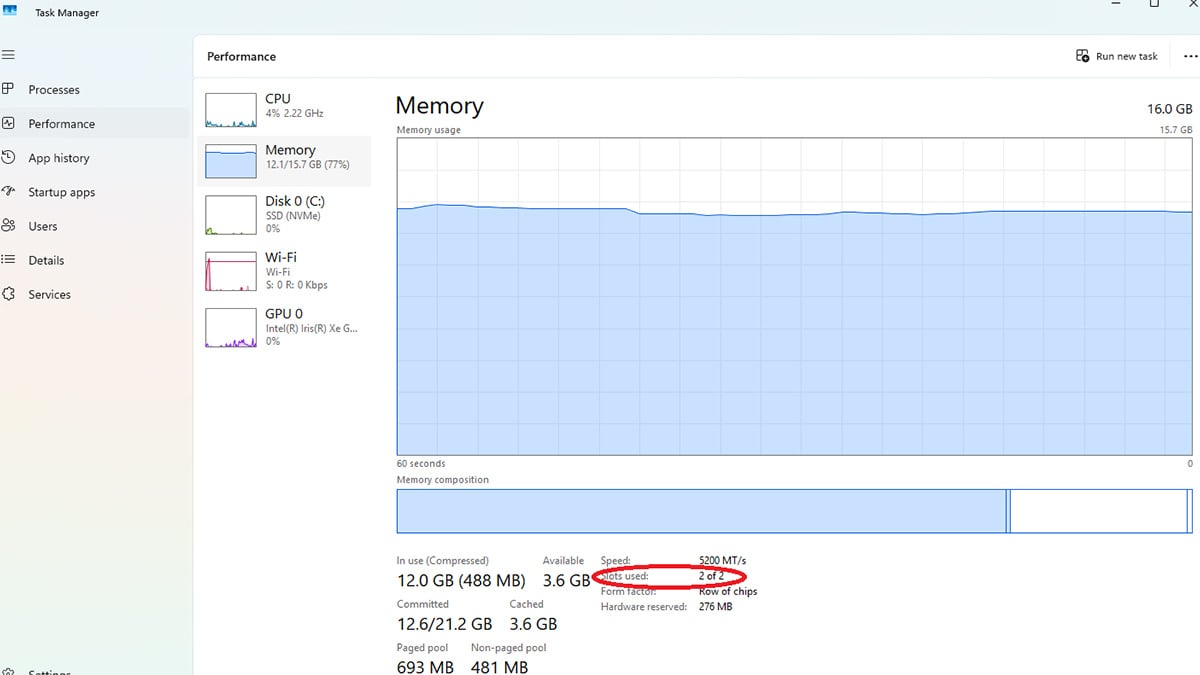
When physical RAM runs low, Windows uses a portion of your SSD as virtual memory. This is normal behavior, but misconfigured settings can cause performance issues.
Go to Advanced system settings → Performance → Advanced → Virtual memory and ensure System managed size is enabled. Windows dynamically adjusts the page file based on workload, which is usually more effective than manual tuning. Disabling or severely limiting virtual memory can lead to crashes or stuttering, even on systems with higher RAM capacity.
Optimizing RAM in Windows 11 is about reducing waste and making sure your hardware is configured correctly, not forcing memory to stay empty or relying on software tricks. If you have followed these steps and still notice high memory usage after long sessions or heavy workloads, manually clearing RAM can be useful in specific situations. For a step-by-step explanation of when clearing memory makes sense and how to do it safely, you can read our full guide on how to clear RAM in Windows 11.
Conclusion
With RAM prices rising and upgrades becoming less affordable than they once were, getting the most out of the memory you already have matters more than ever. Windows 11 is designed to use RAM aggressively to improve responsiveness, but that only works well when background software is kept under control and hardware is configured correctly.
By disabling unnecessary startup apps, limiting background activity, ensuring your RAM is running at its intended speed, optimizing browser behavior, and confirming proper dual-channel configuration, you can reduce wasted memory and improve day-to-day performance without relying on misleading tools or shortcuts. These steps will not replace the need for more RAM in demanding workloads, but they can significantly extend the usable life of your system.
At a certain point, optimization reaches its limits. If your system frequently stutters, relies heavily on disk activity, or struggles with modern applications even after tuning, adding more physical RAM is the only meaningful solution. Until then, smart configuration and disciplined software management remain the most effective ways to keep Windows 11 running smoothly despite higher memory costs.
When upgrading makes sense
If you have reached the point where additional RAM is necessary, choosing a system that is properly balanced from the start matters just as much as raw capacity. Modern laptops and desktops sold through the Acer Store are configured with current Windows 11 requirements in mind, offering sensible memory capacities, upgradable designs on select models, and hardware combinations that avoid common performance bottlenecks.
FAQ
Does clearing RAM improve performance in Windows 11?
Only in specific cases. Clearing RAM can help after long uptimes, memory leaks, or when an app fails to release memory. For normal day-to-day use, Windows already manages RAM efficiently, and routinely clearing it does not improve performance.
Is high RAM usage bad in Windows 11?
No. High RAM usage is often normal. Windows uses available memory to cache apps and files so they load faster. It becomes a problem only when available memory stays low and you experience slowdowns, stuttering, or heavy disk usage.
Can you download more RAM?
No. RAM is a physical hardware component and cannot be downloaded. Software that claims to add RAM usually forces Windows to clear cached memory, which often results in worse performance.
How much RAM do you need for Windows 11?
For basic use, 16 GB is the practical minimum. For gaming, creative work, software development, or heavy multitasking, 32 GB is recommended. Systems with less than 16 GB are more likely to struggle with modern workloads.
Does RAM speed matter more than RAM capacity?
Capacity matters more. Having enough RAM prevents slowdowns caused by disk paging. Faster RAM can improve performance, especially in games, but it cannot compensate for insufficient memory capacity.
Will adding more RAM make my PC faster?
Only if your system is currently running out of RAM. If Windows is frequently using virtual memory on your SSD, adding RAM will noticeably improve performance. If you already have enough RAM for your workload, speed gains will be minimal.
Should I use RAM cleaner or memory booster apps?
No. These tools often reduce performance by forcing Windows to discard useful cached data. Windows, developed by Microsoft, already manages memory more effectively than third-party utilities.
Recommended Products








