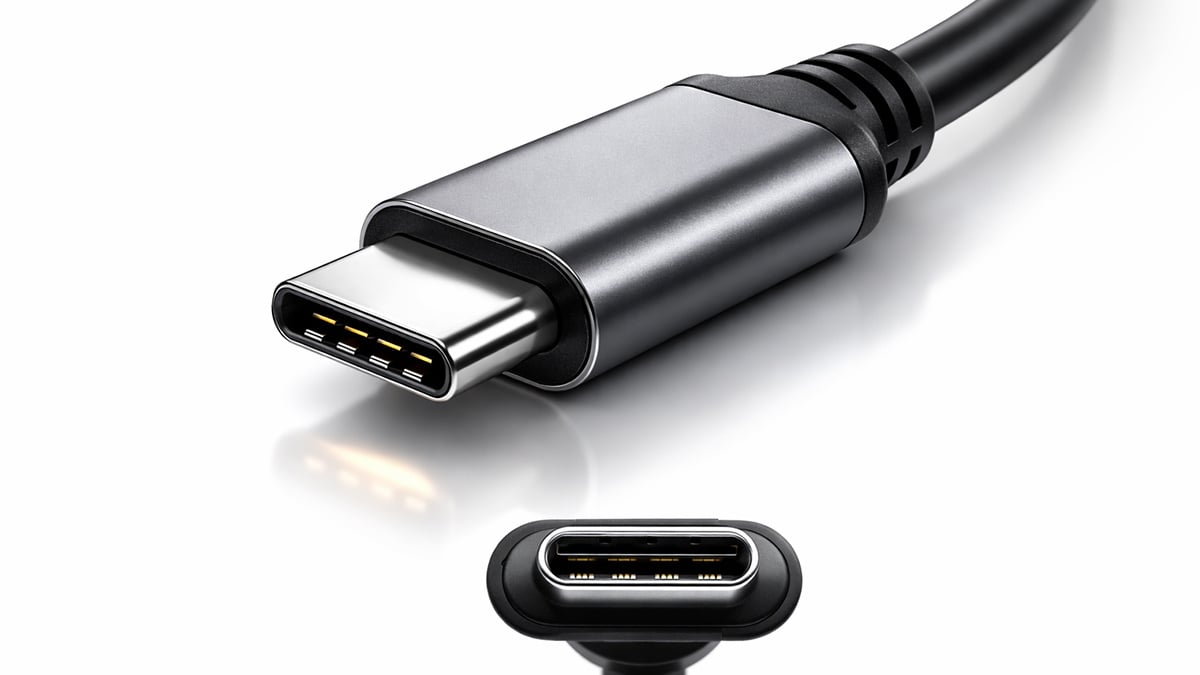
USB-C has become the default connector for modern phones, tablets, laptops, docks, monitors, power banks, and accessories because the standard supports a reversible connector design and can carry power, data, and video through the same port. The USB Implementers Forum says USB Type-C was designed as a slim, reversible connector format, while USB Power Delivery over compatible USB-C connections can scale up to 240W on supported hardware and cables.
That convenience also creates confusion. Many people know the connector by sight, but still ask questions like what is the usb type c, what is a USB-C port, how to clean USB-C port, and how to fix loose USB-C port. Those are reasonable questions, because the shape of the connector does not automatically tell you the speed, charging wattage, or display support of a specific device. USB-IF notes that USB Type-C is the connector system, while actual performance depends on the underlying USB and power standards implemented by the device and cable.
This guide explains what USB-C is, what a USB-C port actually does, how to clean one safely, what can cause looseness, and what you can realistically fix at home before turning to professional repair.
What is the USB Type-C?
If you are asking what is the usb type c, the short answer is that USB Type-C, often called USB-C, is a connector standard created by the USB Implementers Forum. It is the small, oval, reversible port and plug now found on many modern devices. Unlike older USB-A and Micro-USB connectors, a USB-C plug can be inserted in either orientation. USB-IF describes it as a slim connector designed for mobile products but robust enough for tablets and laptops.
What makes USB-C important is not just the shape. The connector was built to support a wide range of roles across many device categories. Depending on the hardware, a USB-C connection may be used for:
- charging a phone, tablet, laptop, headset, or handheld console
- transferring files between devices
- connecting external storage
- driving an external monitor
- linking to docks, hubs, and adapters
- carrying higher-power charging through USB Power Delivery
USB-IF states that USB Power Delivery over supported full-featured USB Type-C connections can reach up to 240W for qualified products and cables. That is one reason USB-C is now used on more power-hungry devices, including many laptops and displays.
Still, it is important to separate the connector from the protocol. A USB-C cable does not always guarantee the same capabilities. Two different USB-C ports may look identical but behave very differently. One may only support basic charging and USB 2.0 data. Another may support high-speed data, external displays, and much higher power delivery. USB-IF’s documentation makes that distinction clear by treating USB Type-C as the connector framework that can be paired with different data and power specifications.
Why USB-C replaced older USB connectors
USB-C solved several long-standing problems with older ports. USB-A was large and not reversible. Micro-USB was smaller, but fragile and often frustrating to insert correctly. Laptop charging used to require brand-specific barrel connectors. Video outputs often required separate HDMI, DisplayPort, Mini DisplayPort, or proprietary solutions.
USB-C brought those roles closer together by using a single reversible connector that could support power, data, and display functionality across many device types. USB-IF highlights this as one of the format’s core advantages, pairing convenience with scalable performance and power support.
That does not mean every USB-C port does everything. It just means the connector was designed to make those possibilities available.
What is a USB-C port?
When people search what is a USB-C port, they usually mean one of two things. They either want to identify the port physically, or they want to know what functions the port supports on a specific device.
Physically, a USB-C port is the female receptacle shaped like a narrow oval with rounded ends. It accepts a USB-C plug in either direction. The port may appear on laptops, phones, tablets, monitors, docks, external SSD enclosures, headphones, cameras, and game accessories.
Functionally, a USB-C port can serve several different roles depending on the device design. A USB-C port may support:
- charging only
- data transfer only
- charging and data transfer
- video output
- docking and hub support
- fast charging through USB Power Delivery
The confusing part is that two USB-C ports can look identical while offering different features. USB-IF’s materials emphasize that USB Type-C is the connector system, not a guarantee of one fixed performance level.
How to tell what your USB-C port can do
The easiest way to understand a specific USB-C port is to check the device specifications from the manufacturer. Look for language such as:
- USB 2.0 over USB-C
- USB 3.2 Gen 1 or Gen 2
- USB4
- Thunderbolt
- DisplayPort over USB-C
- USB Power Delivery input or output
If the documentation is vague, you can still do some basic testing. Plug in a known data device such as a flash drive or SSD. Try a charger that normally negotiates fast charging. Test with a monitor or dock if your device is supposed to support video output. If some functions work and others do not, the limitation may be the cable, the accessory, or the port specification itself.
Common examples of USB-C ports
A phone’s USB-C port often handles charging and file transfers. A laptop USB-C port may also support video output and docking. A monitor’s USB-C port may accept video from a laptop while also delivering power back to it. USB-IF specifically notes that supported USB-C and USB Power Delivery implementations can enable scenarios such as a wall-powered monitor charging a connected laptop while displaying its video signal.
What a USB-C port does not automatically guarantee
This is where many buyers get tripped up. A USB-C port does not automatically mean:
- top-tier data speed
- support for every charger
- video output support
- support for every dock
- maximum charging wattage
- compatibility with every USB-C cable
In practice, the cable matters just as much as the port. A weak or charge-only cable can bottleneck performance. USB-IF’s compliance materials also note that cable labeling and certification matter, especially for higher-power use cases such as 60W and 240W capable cables.
That is why a user may say their USB-C setup is slow or unreliable when the real problem is not the port itself, but the cable or accessory in the chain.
Signs your USB-C port needs attention
A USB-C port usually works quietly in the background until something goes wrong. Common warning signs include:
- the cable no longer clicks or seats firmly
- charging starts and stops when the cable moves
- data transfers fail intermittently
- the device only charges at certain angles
- the port feels loose compared with other devices
- lint or debris is visible inside the opening
- accessories disconnect under light movement
If you see those symptoms, the issue is usually one of three things: debris in the port, cable wear, or physical damage to the port itself.
How to clean USB-C port
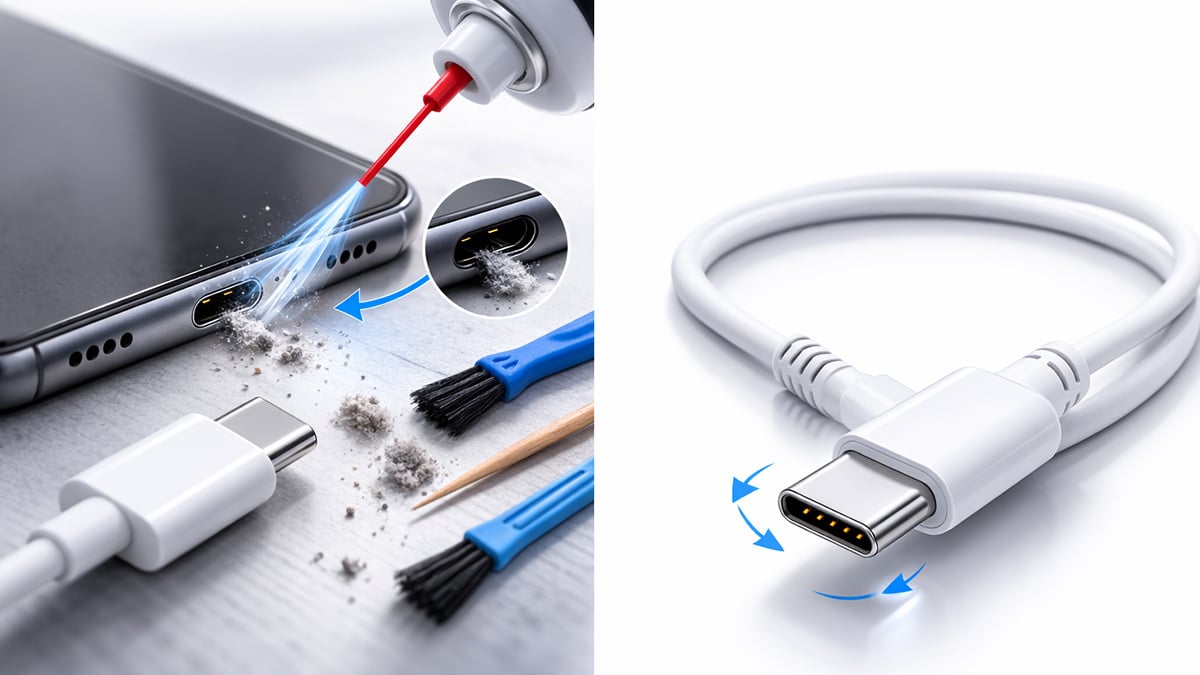
If you need to know how to clean USB-C port safely, the first rule is simple: power the device down first and disconnect all cables before you do anything. After that, focus on dry, gentle cleaning before trying any liquid.
A USB-C port often collects pocket lint, dust, and compressed debris. That buildup can stop the plug from seating fully, which makes the port feel loose even when the port itself is not damaged. This is especially common on phones and tablets carried in pockets or bags.
Safest way to clean a USB-C port
Use this order:
- Turn the device off.
- Shine a light into the port.
- Use a can of compressed air in short bursts to loosen dust.
- If lint is packed in, use a non-metal, non-conductive tool very gently to lift it out.
- Check the port again with a light before reconnecting the cable.
The goal is to remove compacted lint without bending or scraping the internal contacts.
What not to use
Avoid anything metal, sharp, or wet enough to pool inside the port. That means no paper clips, sewing needles, knives, or anything that could scratch the contact pins. Also avoid forcing a tool deep into the connector.
If you want to use a cleaning swab, it should be very small and only slightly dampened if the manufacturer specifically allows it. For most people, dry methods are safer.
When compressed air helps most
Compressed air is most useful when the debris is loose or sitting near the opening. It is less effective when lint has been packed into the bottom of the port over time. In those cases, the debris often needs to be teased out carefully rather than blasted deeper.
How often should you clean a USB-C port?
There is no fixed schedule. Clean it when you notice symptoms, or whenever you can visibly see buildup. If you carry a phone in your pocket every day, checking the port every few months is reasonable.
After cleaning, test with another cable
Once the port is clean, test it with a known good cable. A surprising number of “bad port” complaints are actually worn-out cables. If the device works normally with a different cable, the connector was probably not the real problem.
How to fix loose USB-C port
The phrase how to fix loose USB-C port can describe two very different situations.
The first is a false loose fit caused by lint or debris. In that case, cleaning the port often solves the issue.
The second is real hardware wear or damage. In that case, home fixes are limited.
Step 1: Confirm whether the looseness is actually debris
Before assuming the port is broken, inspect it closely. If the cable no longer inserts fully or seems to pop out too easily, pocket lint is a common cause. A packed port prevents the plug from seating at full depth, so the connection feels shallow and unstable.
Clean the port first. Then test again.
Step 2: Try a different cable
USB-C cables wear out. The plug housing can loosen, the connector can become worn, or the internal strain relief can weaken. If one cable feels loose but another fits normally, the cable is the problem, not the port.
Step 3: Check whether the port moves physically
If the connector inside the device appears to wobble, sink inward, or shift when you insert a cable, that points to hardware damage. At that stage, there is no safe home repair for most users. The port may need to be resoldered or the charging daughterboard may need to be replaced, depending on the device.
Step 4: Test the same device with multiple accessories
A port that fails only with one accessory may not be loose at all. It could be:
- a bad cable
- a damaged adapter
- insufficient power from the charger
- an accessory compatibility issue
Microsoft’s support guidance for external devices repeatedly recommends checking the physical connection, confirming the cable is secure, and testing on another device when connection issues appear.
Step 5: Stop forcing the cable
If a USB-C port feels wrong, do not keep forcing connections. Repeated pressure can worsen damage, especially if the internal tongue or contacts are bent.
Can you tighten a USB-C port yourself?
Not really, at least not safely. Unlike a loose screw, a USB-C port cannot usually be tightened with a simple adjustment. If the metal shell or solder joints are worn, the proper fix is usually hardware repair or part replacement.
That is why the realistic answer to how to fix loose USB-C port is this:
- clean it if debris is causing the issue
- replace the cable if the plug is worn
- seek professional repair if the port itself is physically damaged
When a USB-C problem is not the port at all
Sometimes the port gets blamed for problems caused elsewhere. Before assuming the connector is failing, check:
- the wall charger
- the cable
- the dock or hub
- the accessory you are plugging in
- the device software or drivers
- any case or cover blocking full insertion
On laptops and desktops, connection issues can also come from software, driver problems, or unsupported accessory combinations. On phones and tablets, moisture detection, debris, or battery health issues can also interfere with charging behavior.
How to make USB-C ports last longer
USB-C is durable, but not indestructible. A few habits help extend port life:
- unplug by gripping the connector, not yanking the cable
- avoid leaving heavy dongles hanging from the port without support
- keep the port free of dust and lint
- do not force a connector if it feels obstructed
- use certified or reputable cables for higher-power charging
- avoid cheap adapters that fit poorly
For higher-power charging setups, using compliant cables matters even more. USB-IF’s compliance materials and product labeling guidance are meant to reduce confusion around cable capabilities, especially for higher wattages.
USB-C vs. older USB connectors
USB-C replaced older connectors in many products because it solves several design problems at once.
USB-A was large and directional. Micro-USB was smaller but fragile and annoying to plug in. USB-C is reversible, compact, and more versatile. It can support modern charging and display features that older ports often handled through separate connectors or proprietary chargers. USB-IF positions USB Type-C as a forward-looking connector built for scalable performance and power.
For users, that translates into fewer cable types, fewer charger bricks, and more flexibility across devices.
Final thoughts
USB-C is simple on the outside and more complicated underneath. The connector itself is easy to recognize, but the actual features of a USB-C port depend on the device, the cable, and the standards being supported. That is why questions like what is the usb type c and what is a USB-C port still matter, even though the connector is now everywhere.
The good news is that many common USB-C problems are not catastrophic. Dirt and lint are frequent causes of unreliable charging or a loose-feeling fit, so learning how to clean the USB-C port properly can solve more issues than people expect. If the port still feels unstable after cleaning and testing a different cable, the remaining problem is usually physical wear or damage, and that is when professional repair becomes the safest option.
FAQ
What is the USB Type-C?
USB Type-C is a reversible connector standard used for charging, data transfer, and, on some devices, video output. It is the small oval-shaped port now found on many phones, tablets, laptops, and accessories.
What is a USB-C port used for?
A USB-C port can be used for charging devices, transferring files, connecting accessories, and sometimes outputting video to an external display. The exact functions depend on the device and the port’s specifications.
Is USB-C the same as fast charging?
Not always. A USB-C connector can support fast charging, but not every USB-C port, cable, or charger supports the same power level.
Can all USB-C ports support video output?
No. Some USB-C ports support display output, while others only handle charging and data. You need to check your device’s specifications to confirm.
Why does my USB-C cable feel loose?
A loose USB-C connection is often caused by lint or debris packed inside the port. It can also happen because of a worn cable or physical damage to the port itself.
How do I clean a USB-C port safely?
Turn the device off first, then use a light to inspect the port. Remove dust with short bursts of compressed air and gently lift out packed lint with a non-metal, non-conductive tool.
Can I use a needle or paper clip to clean a USB-C port?
No. Metal tools can damage the internal contacts and make the problem worse. It is safer to use dry air or a non-conductive cleaning tool.
How often should I clean my USB-C port?
There is no fixed schedule, but it is a good idea to check it whenever charging becomes unreliable or the cable no longer fits snugly.
How do I fix a loose USB-C port?
Start by cleaning the port and testing a different cable. If the port still feels unstable or physically moves, it likely needs professional repair.
Can a damaged USB-C port be repaired at home?
Usually not. If the port itself is worn, bent, or loose inside the device, the proper fix often requires part replacement or soldering work by a repair technician.
Why is my device charging slowly through USB-C?
Slow charging can be caused by a weak charger, a low-quality cable, port debris, or a device that does not support higher charging speeds.
Does every USB-C cable do the same thing?
No. Some USB-C cables only support charging, while others also support faster data transfer, video output, or higher power delivery.
Is USB-C better than Micro-USB?
In most cases, yes. USB-C is reversible, more durable in daily use, and can support more advanced charging and data features than older Micro-USB connectors.
Should I replace the cable before repairing the port?
Yes. Testing a different cable is one of the easiest ways to rule out a cable problem before assuming the port itself is damaged.
Recommended Products

USB Cable (Type A to Type B Micro) (Black, 6ft)
Buy Now |

HDMI Cable (19P 2.0M 1.4)
Buy Now |

Power Cord 125V 3P (Mickey Mouse Power Cord)
Buy Now |
|---|








