
If your game suddenly starts stuttering, FPS drops appear without warning, or inputs feel delayed, Windows background tasks may be stealing system resources from your game.
Windows often runs dozens of services at the same time, including updates, indexing, telemetry, and background apps. These processes help the operating system run smoothly for everyday tasks, but they can interfere with gaming performance by consuming CPU cycles, memory, and network bandwidth.
The good news is that you can change several system settings to boost computer performance for gaming and ensure your game gets priority access to system resources. These adjustments help reduce stuttering, improve responsiveness, and prevent background processes from interfering with gameplay.
Step 1: Make the CPU prioritize your games

One of the most effective ways to smooth gameplay is adjusting CPU priority settings, which act as a simple anti stutter CPU priority fix.
Windows divides CPU time between programs you are actively using and background services. If the system is not configured properly, background tasks such as updates or telemetry can interrupt your game.
How to make CPU prioritize your game
- Press Windows + R
- Type sysdm.cpl
- Press Enter
- Open the Advanced tab
- Under Performance, click Settings
- Select the Advanced tab
- Under Processor Scheduling, select Programs
- Click Apply and restart your PC
This tells Windows to prioritize the program currently in focus, which is usually your game.
Step 2: Disable Startup Apps That Run in the Background

Many programs install startup services that automatically launch when Windows boots. These applications may continue running in the background while you are gaming, using CPU cycles, memory, or network bandwidth.
Disabling unnecessary startup apps can reduce background activity and ensure more system resources remain available for your game.
How to disable startup apps
- Press Ctrl + Shift + Esc to open Task Manager
- Select the Startup apps tab
- Review the list of programs that launch when Windows starts
- Right click any app you do not need running constantly
- Click Disable
Examples of startup apps that many users safely disable include:
- third-party updaters
- cloud syncing tools that are not in use
- launcher auto-start services
- software utilities that do not need to run continuously
Be careful not to disable security software, device drivers, or hardware control utilities.
Why this helps gaming performance
Startup applications can continue running even after Windows finishes booting. Reducing these background processes lowers memory usage and prevents unnecessary CPU interruptions during gameplay.
This change will not dramatically increase FPS, but it can help improve overall system responsiveness and reduce random background activity while gaming.
Step 3: Disable Xbox Game Bar and Background Recording

Windows 11 includes built-in capture tools such as Xbox Game Bar. These features allow you to record gameplay, capture clips, and monitor performance. Even if you never use them, parts of the system can still run in the background.
Disabling these features can free up system resources and help prevent occasional performance drops during gameplay.
Turn off Xbox Game Bar
- Press Windows + I to open Settings
- Click Gaming
- Select Xbox Game Bar
- Turn off Open Xbox Game Bar using this button on a controller
- Turn off the main Xbox Game Bar toggle if it appears on your system
Disable Background Recording
- Open Settings
- Go to Gaming
- Click Captures
- Turn off Record what happened
This option replaces the older Game DVR background recording feature. Disabling it prevents Windows from saving gameplay clips automatically in the background.
Optional: Disable Xbox Startup Processes
You can also stop Xbox services from launching when Windows starts.
- Open Task Manager
- Go to the Startup apps tab
- Disable any Xbox-related entries you do not use
Step 4: Use the High Performance Power Mode
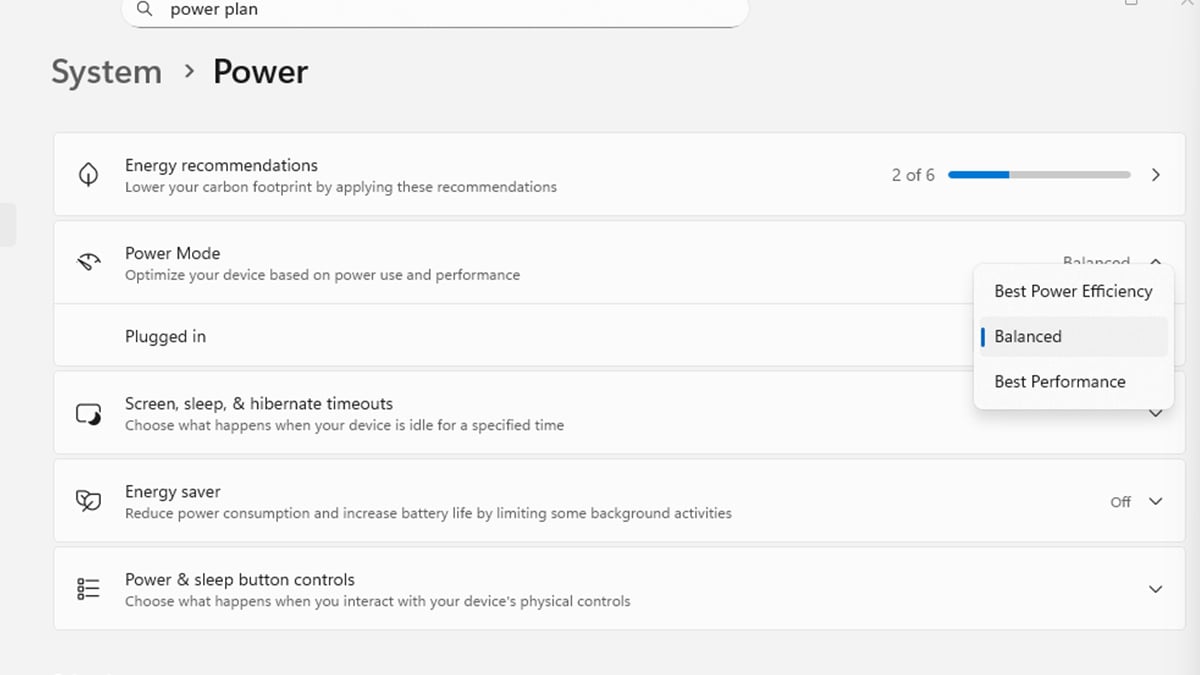
Windows power mode controls how aggressively your CPU boosts and how quickly it reduces clock speeds. Balanced mode can sometimes delay CPU boost behavior, especially on laptops.
Switching to a performance power plan ensures your CPU responds immediately when a game needs more processing power.
Enable the High Performance power mode
- Press Windows + S
- Search Power Mode
- Click Choose a power plan
- Select Best Performance
If enabled, you may also see Ultimate Performance, which removes additional power-saving limits.
Step 5: Enable Windows Game Mode

Windows 11 includes Game Mode, which is specifically designed to prioritize games over background activity.
When Game Mode is enabled, Windows will:
- reduce background update activity
- prioritize game processes
- allocate more system resources to the active game
Turn on Game Mode
- Open Settings
- Go to Gaming
- Click Game Mode
- Toggle Game Mode On
Step 6: Try Hardware Accelerated GPU Scheduling

Hardware Accelerated GPU Scheduling is a Windows feature that allows the GPU to manage its own memory scheduling instead of relying entirely on the CPU. In some systems this can reduce CPU overhead and slightly improve frame pacing or latency.
However, the benefit varies depending on your GPU model, drivers, and the game you are playing. Some users see smoother performance, while others may notice no change.
How to enable Hardware Accelerated GPU Scheduling
- Open Settings
- Go to System
- Select Display
- Scroll down and click Graphics
- Click Change default graphics settings
- Turn on Hardware Accelerated GPU Scheduling
- Restart your PC
Step 7: Adjust Game Process Priority (Optional)

Windows automatically manages CPU priority between applications. In most cases this works well, but occasionally a game may compete with other active programs such as browsers, launchers, or background utilities.
You can manually increase the priority of a game process so Windows gives it preference when distributing CPU time.
How to change process priority
- Launch your game
- Press Ctrl + Shift + Esc to open Task Manager
- Click the Details tab
- Locate your game’s .exe file
- Right click it
- Select Set Priority
- Choose Above Normal or High
Avoid using Realtime, which can cause system instability.
Important note: This change only lasts until the program closes. When you restart the game, Windows will return the priority to its default level. For most modern systems this tweak is optional, but it can help reduce CPU contention when multiple applications are running.
Final Thoughts
If you want to boost computer performance for gaming, the most important step is making sure Windows prioritizes your game instead of background processes. Simple adjustments such as optimizing processor scheduling, disabling unnecessary startup apps, and configuring the right system settings can improve responsiveness and reduce interruptions during gameplay.
These changes will not increase the raw power of your hardware, but they can help your PC deliver more consistent performance. Fewer background interruptions means smoother frame pacing, more stable FPS, and better input responsiveness during demanding moments.
For players dealing with random stutters or inconsistent performance, these anti stutter CPU priority adjustments can make gameplay noticeably smoother.
Of course, software optimizations can only go so far. If you want consistently high frame rates in modern games, strong hardware still matters. Systems like Acer Predator gaming desktops and laptops are built specifically for high performance gaming, with powerful CPUs, modern GPUs, and advanced cooling designed to keep performance stable even during long sessions.
If you are looking to push higher refresh rates, play the latest titles at maximum settings, or compete in fast paced multiplayer games, a dedicated gaming system such as the Acer Predator lineup can provide the hardware foundation needed for smooth and reliable performance.
FAQ
Why do games stutter or lose FPS on Windows?
Games can stutter when Windows background tasks compete for CPU time, memory, disk activity, or GPU resources. In most cases, stuttering is more often tied to CPU-related bottlenecks, background processes, or memory limitations than to Windows itself.
Are stutters caused by the CPU or GPU?
Stutters are often caused by the CPU, especially when it is overloaded by the game, background apps, or poor task scheduling. GPU-related issues can also cause stuttering, but sudden frame pacing problems are commonly linked to CPU usage, RAM limits, or asset loading.
Can a lack of VRAM cause stuttering?
Yes. Not having enough GPU VRAM can cause stuttering because the system has performance interruptions on some systems.
Should I enable Hardware Accelerated GPU Scheduling?
It depends on your hardware. Some systems see smoother frame pacing with it enabled, while others notice little change. It is worth testing to see which setting performs better on your PC.
Do these tweaks permanently increase gaming performance?
No. They optimize how Windows allocates system resources, but they do not increase the raw power of your hardware. They are best viewed as efficiency improvements rather than permanent performance upgrades.
What hardware upgrades improve gaming performance the most?
The biggest gains usually come from upgrading the GPU, CPU, or system memory. If your current system is older, a modern gaming PC can deliver much smoother gameplay, better frame rates, and stronger overall stability.
Do gaming PCs really make a difference compared to standard computers?
Yes. Gaming PCs use faster processors, stronger graphics hardware, better cooling, and more capable memory configurations. Systems such as Acer Predator gaming laptops and desktops are built to handle demanding games more effectively than standard PCs.to swap texture and asset data more often. Low system RAM can also cause similar problems, especially in modern games that rely on large textures, open-world streaming, or background multitasking.
Does 100% CPU usage cause stuttering?
Yes. When CPU usage stays near 100%, the system has little room left for background game tasks, asset streaming, or input processing. This can lead to frame drops, stuttering, and delayed responsiveness.
How do you fix 100% CPU usage while gaming?
Reducing background apps, disabling unnecessary startup programs, enabling Game Mode, updating drivers, and lowering CPU-heavy in-game settings can help. In some cases, adjusting CPU priority may also improve responsiveness, but if the processor is consistently maxed out, a hardware upgrade may be the best long-term fix.
Does changing CPU priority improve gaming performance?
It can help when multiple programs are competing for processing power. Changing CPU priority does not make your hardware faster, but it may help Windows give your game more attention and reduce interruptions from background activity.
Will disabling background apps increase FPS?
Usually not by a huge amount, but it can reduce system overhead and improve consistency. This is often more useful for reducing stutter and stabilizing performance than for delivering large average FPS gains.
Is Windows Game Mode useful for gaming performance?
Yes. Game Mode is designed to prioritize the active game and reduce interference from background updates and services. It can help improve stability and reduce
Recommended Products

Predator Orion 7000 (RTX 5080)
Buy Now |

Acer Nitro 60 (RTX 5070Ti)
Buy Now |

Acer Nitro V 15 (RTX 5050) Buy Now |
|---|








