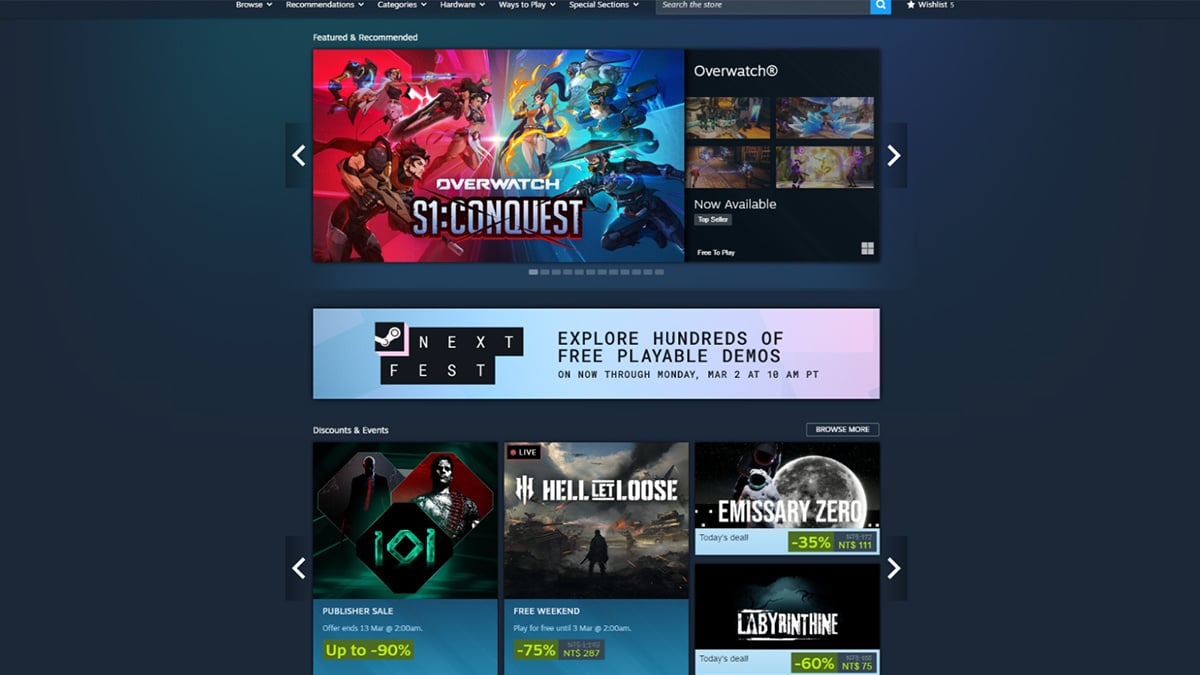
For many PC gamers, Steam is more than just a game launcher. It is a long-running digital library, a social hub, and a record of years, sometimes decades, of gaming habits. With frequent sales, flash discounts, and an ever-growing catalog, it is surprisingly easy to lose track of how much money has gone into your Steam account over time. What starts as a few impulse buys during a holiday sale can quietly turn into a substantial total.
Before we look at how to check your own spending, it helps to understand why Steam has become such a central part of PC gaming in the first place.
A brief history of Steam and its rise in PC gaming
Steam was launched by Steam in 2003 as a way to deliver updates for Valve games like Counter-Strike. At the time, the idea of digitally downloading full PC games was still controversial. Physical discs dominated the market, and many players were skeptical about tying their purchases to an online account.
Over the years, Steam evolved far beyond its original purpose. It became a full digital storefront, a DRM platform, and eventually the default place to buy and manage PC games. By the late 2000s and early 2010s, major publishers and indie developers alike were releasing their titles on Steam, helping it grow into the largest PC game marketplace in the world.
One of the biggest drivers of Steam’s popularity has been its aggressive and consistent sales strategy. Seasonal events like the Summer Sale, Winter Sale, Autumn Sale, and publisher-specific promotions have trained players to expect deep discounts on a regular basis. Combined with features like wishlists, notifications, and personalized recommendations, Steam makes it easy to justify buying games “for later,” even if they never get installed.
Today, Steam is widely regarded as the de facto standard for PC game purchases. It offers cloud saves, community features, mod support through the Steam Workshop, controller configuration tools, and a unified library that can span thousands of titles. For many players, their Steam account represents their entire PC gaming history. In my own case, I have an 18-year-old Steam account, and it effectively documents nearly two decades of purchases, free weekends, bundles, and sale-driven decisions.
Because Steam purchases are spread out over years and often softened by discounts, the total cost is rarely obvious. A $5 indie game here, a $20 bundle there, and a handful of full-price releases can add up faster than most people expect. Steam does not show your lifetime spending front and center, which makes the final number feel almost abstract.
That raises a simple but compelling question: if Steam has been part of your gaming life for years, do you actually know how much you have spent on it?
How to check how much money you spent on Steam
Steam provides two built-in ways to review your spending. One shows individual transactions, while the other reveals your total lifetime spend. Both are accessed directly through the Steam client and require no third-party tools.
All steps below apply to the desktop Steam client on Windows, macOS, or Linux.
Method 1: Check individual purchases using Purchase History
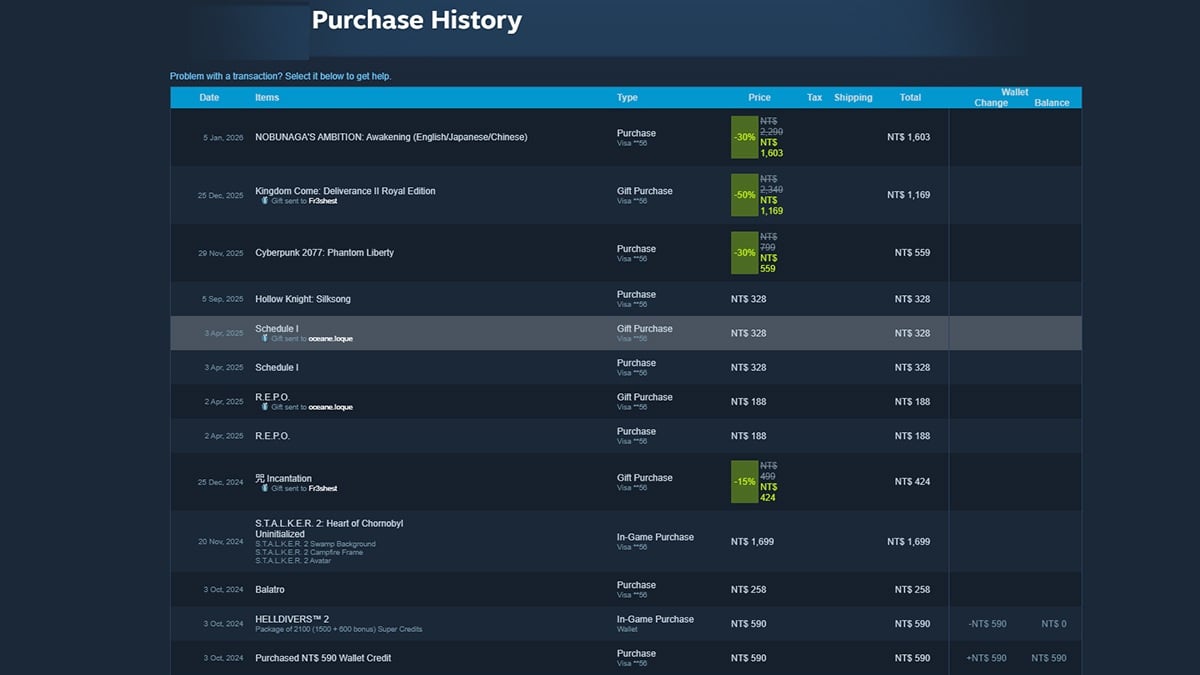
If you want to see every transaction tied to your account, Steam’s Purchase History page provides a complete, itemized record.
Steps:
- Open the Steam client and sign in to your account.
- In the top menu bar, click Help → Steam Support.
- Select My Account.
- Click Data Related to Your Steam Account.
- Choose Purchase History.
You will see a chronological list of all transactions associated with your account. This includes game purchases, DLC, Steam Wallet top-ups, refunds, and free licenses. Each entry shows the date, item name, and transaction status.
This view is useful if you want to:
- Review specific purchases
- Track spending during major sales
- Confirm refunds or disputed charges
However, because purchases are listed individually, this method does not show a single lifetime total.
Method 2: Check your total lifetime spend with External Funds Used

To see how much real money you have spent on Steam overall, you need to view the External Funds Used page. This is the most accurate way to understand your total spending.
Steps:
- Open the Steam client and sign in.
- In the top menu bar, click Help → Steam Support.
- Select My Account.
- Click Data Related to Your Steam Account.
- Scroll to the bottom and select External Funds Used.
This page shows the total amount of real-world money added to your Steam account since it was created. It also breaks spending down by region and currency if you have made purchases in different countries or store regions over the years.
The total includes:
- Credit card and digital payment purchases
- Steam Wallet funds bought with real money
- Spending across multiple currencies
It does not include gifted games you did not pay for or free promotional titles.
For long-time users, especially those with accounts that are a decade old or more, this number often comes as a surprise. Small purchases made consistently over many years add up quickly, particularly when frequent sales make spending feel incremental rather than significant.
Conclusion
Checking how much money you have spent on Steam can be eye-opening, especially if you have been using the platform for many years. Between constant seasonal sales, deep discounts, and the convenience of one-click purchases, spending often happens in small amounts that quietly add up over time. By using Steam’s built-in Purchase History and External Funds Used pages, you can see both your individual transactions and your total lifetime spend in one place, without relying on third-party tools.
If you are someone who has built a sizable Steam library, having hardware that can actually do those games justice matters. Gaming-focused systems like Acer Nitro and Acer Predator are designed for PC gamers who spend most of their time on Steam, whether you are working through a backlog picked up during sales or playing the latest releases at higher settings and smoother frame rates.
Understanding your spending helps you make better decisions going forward. Pairing that awareness with capable gaming hardware ensures the money you have already invested in your Steam library delivers real value every time you play.
FAQ
Can I see how much money I have spent on Steam?
Yes. Steam allows users to view their total spending through the External Funds Used page in the account data section. This shows the total amount of real-world money added to your Steam account since it was created.
Does Steam show your lifetime spending automatically?
No. Steam does not display your lifetime spending on the main account page. You need to navigate to Help → Steam Support → My Account → Data Related to Your Steam Account → External Funds Used to see the total.
What is the difference between Purchase History and External Funds Used?
Purchase History lists every individual transaction tied to your account, including game purchases, refunds, and wallet top-ups. External Funds Used shows the total amount of real money added to your Steam account over time.
Do gifted games count toward your Steam spending total?
No. Games that were gifted to you by other users do not count toward your total spending because no money was added to your account for those purchases.
Do Steam refunds affect the total spending number?
Refunds may still appear in your purchase history, but the External Funds Used page reflects the amount of money added to your account rather than the final balance after refunds.
Does the total include Steam Wallet purchases?
Yes. If you add money to your Steam Wallet using a credit card, PayPal, or another payment method, that amount is included in the External Funds Used total.
Can I check my Steam spending on mobile?
Yes. You can access the same account data pages through the Steam website in a mobile browser. The navigation path is the same as in the desktop client.
Why do many Steam users underestimate how much they have spent?
Steam purchases often happen during frequent sales or through small transactions over many years. Because the spending is spread out and heavily discounted, the total amount can be higher than many users expect.
Recommended Products

Predator Orion 7000 (RTX 5080)
Buy Now |

Acer Nitro 60 (RTX 5070Ti)
Buy Now |

Predator Triton (RTX 5070)
Buy Now |
|---|








