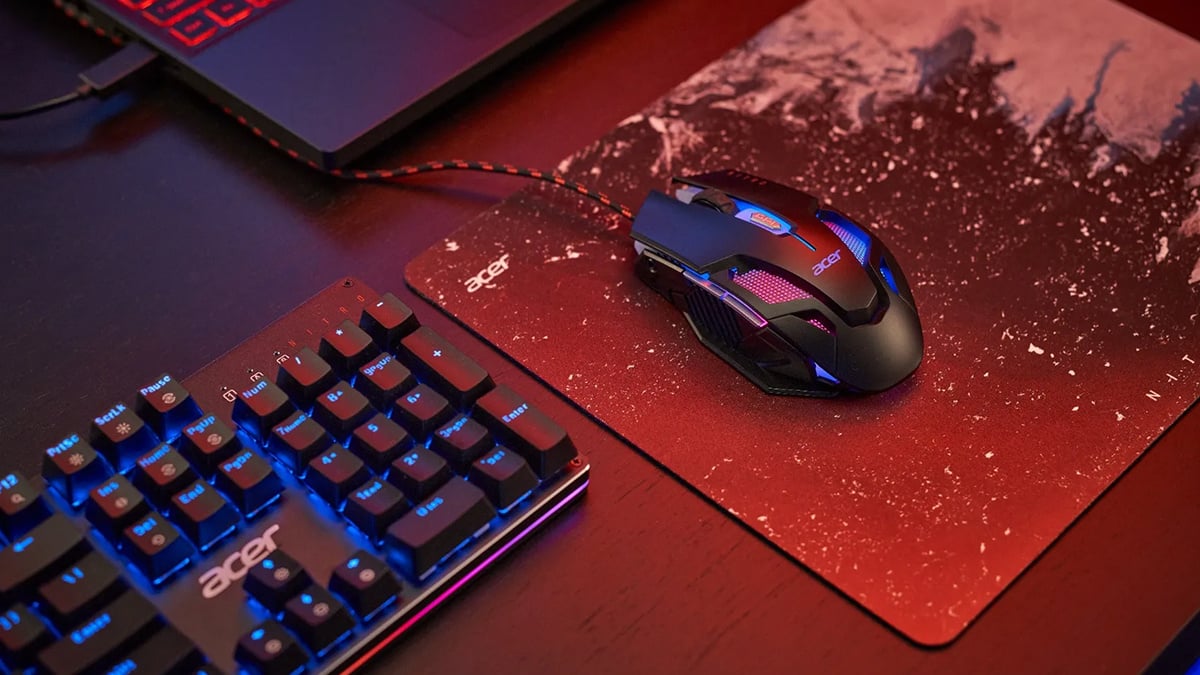
Today we’re going to get to the bottom of what DPI is and how it affects gaming performance. We’ll also sort out whether low or high DPI is better for different types of games, and how to change DPI settings in Windows 11.
Mouse sensitivity directly affects aiming precision, camera control, and reaction speed in PC gaming. While many players adjust sensitivity without fully understanding it, the key technical factor behind mouse responsiveness is DPI.
Choosing the right setting can improve consistency and comfort, while the wrong setting can lead to overcorrection, missed shots, and unstable tracking.
What is DPI on a mouse?
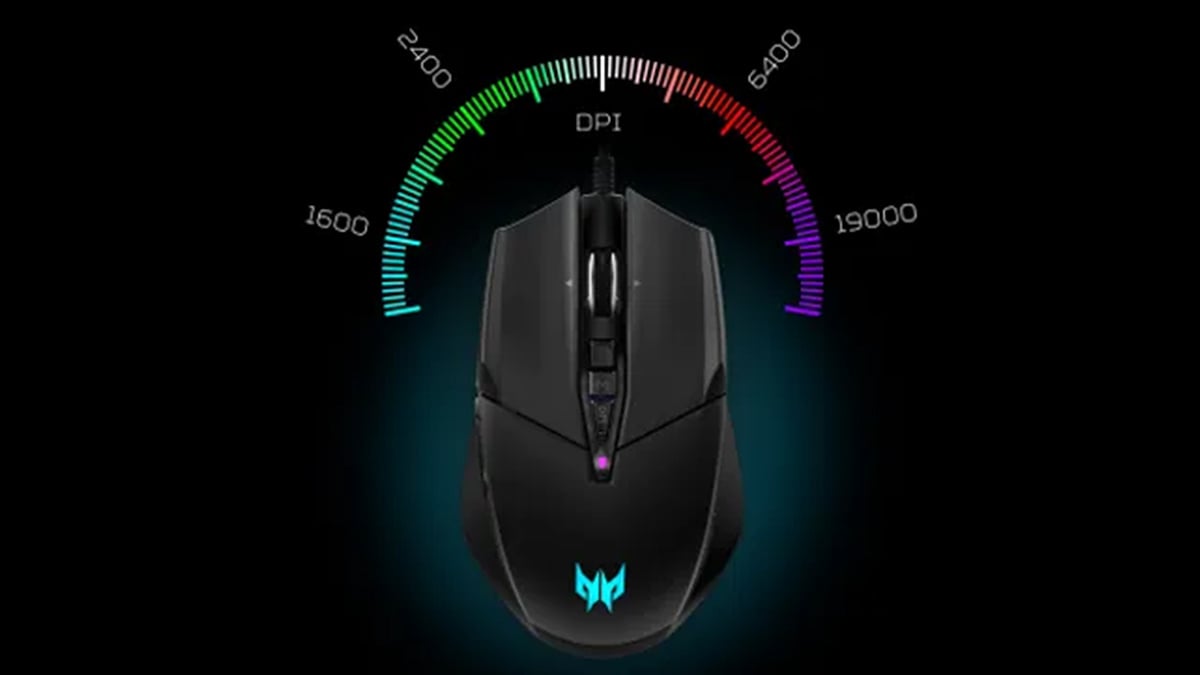
DPI stands for dots per inch. In the context of a computer mouse, it measures how many pixels the cursor moves on screen for every inch you physically move the mouse on your desk. At 400 DPI, moving your mouse one inch moves the cursor 400 pixels, while at 1600 DPI, moving your mouse one inch moves the cursor 1600 pixels.
So, a higher DPI makes the mouse more sensitive. Small physical movements result in large cursor movements. A lower DPI makes the mouse less sensitive, requiring larger hand movements to move the cursor the same distance.
It’s crucial to distinguish DPI from in-game sensitivity. DPI is a hardware-level setting controlled by the mouse itself. In-game sensitivity is a software multiplier applied inside a specific game. Your overall responsiveness is determined by the combination of both.
Most modern gaming mice allow adjustable DPI levels, either through dedicated software or via a physical DPI button that cycles through preset values. Some mice allow precise numerical adjustments, while others offer fixed increments.
How does DPI affect gaming?
DPI influences how quickly and how accurately you can move your crosshair or camera in a game. Its impact can be seen in several areas.
1. Aiming precision. Lower DPI generally allows finer control when making small adjustments. This can help with long-range aiming, recoil control, and smooth target tracking. Higher DPI can make small adjustments more difficult if sensitivity is too high, since tiny hand movements translate into larger on-screen motion.
Turning speed. Higher DPI allows rapid camera rotation with minimal physical movement. This can be useful in fast-paced games where quick directional changes are frequent. Lower DPI requires larger arm movement for the same turn, which can feel slower but often results in more controlled motion.
2. Consistency and muscle memory. Consistency is critical in competitive gaming. Once you adapt to a specific DPI and in-game sensitivity combination, your brain builds muscle memory. Frequent changes can temporarily reduce accuracy while your coordination adjusts.
3. Physical setup. Low DPI players often use larger mousepads and rely on arm movement. High DPI players typically use wrist movement and smaller desk space. Your physical setup may influence which setting feels more natural.
In practical terms, DPI affects control, speed, comfort, and consistency. It does not directly improve skill, but it can support better performance when properly configured.
Low DPI vs high DPI, which is better for gaming?
There is no single DPI setting that is best for everyone. The optimal choice depends on the type of game and your personal preference.
Low DPI settings, commonly between 400 and 800 DPI, are widely used in competitive first-person shooters. Low DPI offers greater precision for fine aiming adjustments, allowing smoother and more deliberate crosshair placement. It also supports more controlled recoil management and steadier target tracking, particularly at longer ranges. However, lower DPI requires more desk space because it involves larger physical mouse movements, often using the entire arm rather than just the wrist. It may also feel slow in fast camera scenarios where rapid turning or quick directional changes are necessary. Lower DPI combined with moderate in-game sensitivity often results in lower overall effective sensitivity, which many competitive players prefer for accuracy.
High DPI settings, such as 1600 DPI or higher, increase overall responsiveness by allowing the cursor or crosshair to move farther with smaller physical movements. This enables faster camera rotation and requires less physical effort, which can be convenient for players with limited desk space or those who prefer wrist-based movement. However, high DPI can make small aiming adjustments harder to control, especially in precision-focused games. If sensitivity is set too high, it may also lead to overcorrection and unstable tracking. Still wondering if higher DPI is better? High DPI is not inherently superior; it simply changes how responsive the mouse feels. Higher DPI is not automatically better for gaming, and extremely high DPI values can make aiming inconsistent if they are not balanced with appropriately reduced in-game sensitivity.
What matters most is whether you can aim consistently and comfortably. Many players experiment before settling on a stable configuration that supports reliable performance. Remember, the goal is controlled responsiveness, not maximum sensitivity. We recommend trying various settings, as having the wrong DPI can actually limit your ability to succeed in certain games.
Medium DPI settings: the middle way?
A mid-range DPI setting, typically between 800 and 1600, delivers a practical mix of responsiveness and precision. Many gamers settle on 800 or 1600 DPI because these values perform reliably across a wide range of titles.
This range works especially well for RPGs, MOBAs, and strategy-based games, where steady cursor control is just as important as the ability to react quickly. Titles such as League of Legends and World of Warcraft feel natural and manageable within this DPI window.
If you regularly move between different genres, medium DPI is a convenient choice. It reduces the need to constantly adjust your mouse configuration every time you launch a new game.
On a 1440p display, 800 DPI typically offers smooth tracking when paired with standard in-game sensitivity settings. The cursor speed remains comfortable for both gameplay and everyday tasks. For higher-resolution screens, 1200 DPI can provide a slightly faster feel while still maintaining solid control.
How to Change the DPI on Windows 11

Windows 11 does not directly change your mouse’s hardware DPI, but it allows you to adjust pointer speed and related sensitivity settings at the operating system level. To adjust mouse sensitivity in Windows 11:
- Open Settings.
- Select Bluetooth & devices.
- Click Mouse.
- Adjust the Mouse pointer speed slider.
For additional options:
- Click Additional mouse settings.
- Open Pointer Options.
- Disable Enhance pointer precision for more consistent tracking.
Many gamers disable pointer acceleration to maintain predictable movement. If your mouse supports adjustable DPI, the most accurate way to change DPI is through the physical DPI button or the manufacturer’s configuration software.
Remember to only adjust one variable at a time. Changing DPI, Windows sensitivity, and in-game sensitivity simultaneously can make it difficult to determine what is improving or reducing performance.
High, low or in-between sensitivity?
High sensitivity and low sensitivity each offer advantages, but neither is universally better. DPI determines how responsive your mouse is, while in-game sensitivity modifies that response. Lower DPI often supports precision and controlled aiming, particularly in competitive shooters. Higher DPI enables faster movement with less physical effort. The most effective approach is to choose a setting that feels natural, allows consistent aim, and supports your specific game type. Stability and muscle memory matter more than chasing extreme sensitivity values.

For players looking to get the most out of their sensitivity settings, hardware also plays an important role. High refresh rate displays, responsive trackpads and sensors, and powerful GPUs contribute to smoother aiming and stable frame rates. Acer gaming laptops like the Predator Helios 16 AI deliver AI-driven performance and OLED visual clarity for both gaming and productivity, while the Acer Nitro V 16 AI AMD offers AI-powered gaming performance with smooth visuals and strong connectivity for essential gamers.
FAQs
What Is DPI on a Mouse?
DPI, or dots per inch, measures how sensitive a mouse is. Higher DPI means the cursor moves farther with less physical movement.
Is Higher DPI Better for Gaming?
Not necessarily. Very high DPI can make aiming harder to control. The best setting is the one that feels consistent and comfortable.
Low DPI vs High DPI: Which Should I Use?
Low DPI is often better for precision and control. High DPI allows faster movement with less effort. The right choice depends on your game and playstyle.
What DPI Do Most FPS Players Use?
Many competitive FPS players use lower DPI settings, commonly around 400 to 800 DPI, combined with adjusted in-game sensitivity.
How to Lower Mouse DPI?
Use your mouse’s DPI button or adjust the setting in the manufacturer’s software. You can also lower sensitivity inside your game.
How Do I Change DPI on Windows 11?
Go to Settings > Bluetooth & Devices > Mouse and adjust pointer speed. Disable “Enhance pointer precision” for more consistent tracking.
Recommended Products

Predator Cestus 350 Wireless Gaming Mouse
Buy Now |

Acer Nitro Gaming Mouse III
Buy Now |

AOPEN Gaming Mouse
Buy Now |
|---|