Recording your screen in Windows 11 is easier than most people realize, and you often do not need to install any third-party software to get started. Whether you want to capture a tutorial, record gameplay, save a video call, or document a software issue, Windows 11 includes built-in tools that can handle basic screen recording quickly and reliably. This guide explains how to video record your screen in Windows 11, which tools are available, and when you might want to use alternatives for more advanced recording needs.
What screen recording tools are available in Windows 11?
Windows 11 includes several built-in options for screen recording, each designed for different use cases. While none of them are full professional video editors, they are more than capable for tutorials, gameplay clips, presentations, and troubleshooting.
1. Xbox Game Bar (built-in screen recorder)
Xbox Game Bar is the primary screen recording tool in Windows 11. Despite the name, it is not limited to games. You can use it to record most apps, browser windows, and on-screen activity with audio.
It supports:
- App and window recording
- System audio and microphone input
- Quick keyboard shortcuts
- Automatic saving to your Videos folder
However, Xbox Game Bar cannot record the Windows desktop itself or File Explorer windows.
2. Snipping Tool (screen recording for short clips)
Recent versions of Windows 11 expanded the Snipping Tool to include basic video recording. This is best suited for short clips, demonstrations, or bug reports rather than long recordings.
It supports:
- Recording a selected portion of the screen
- Simple start and stop controls
- Lightweight clips with no setup
Snipping Tool does not include advanced audio controls or editing features.
3. Third-party screen recording software
For users who need advanced features such as desktop capture, multi-monitor recording, overlays, or higher bitrates, third-party screen recording tools may be a better fit. These tools are commonly used by content creators, streamers, educators, and professionals who need more control than Windows 11’s built-in options provide.
Popular examples include OBS Studio, which supports full desktop recording, multiple monitors, scene switching, and streaming; Camtasia, which combines screen recording with built-in video editing for tutorials and training videos; and ShareX, which offers lightweight screen recording with extensive automation and export options. These tools are often used for YouTube content, live streaming, online courses, software demos, and professional presentations where recording quality and flexibility matter.
Once you know which screen recording tool fits your needs, the next step is learning how to use it. Windows 11’s built-in options require very little setup and can be accessed in seconds, making them ideal for quick recordings. Below, we walk through exactly how to video record your screen in Windows 11 using Xbox Game Bar and the Snipping Tool, with clear step-by-step instructions for each method.
How to video record your screen in Windows 11 using Xbox Game Bar
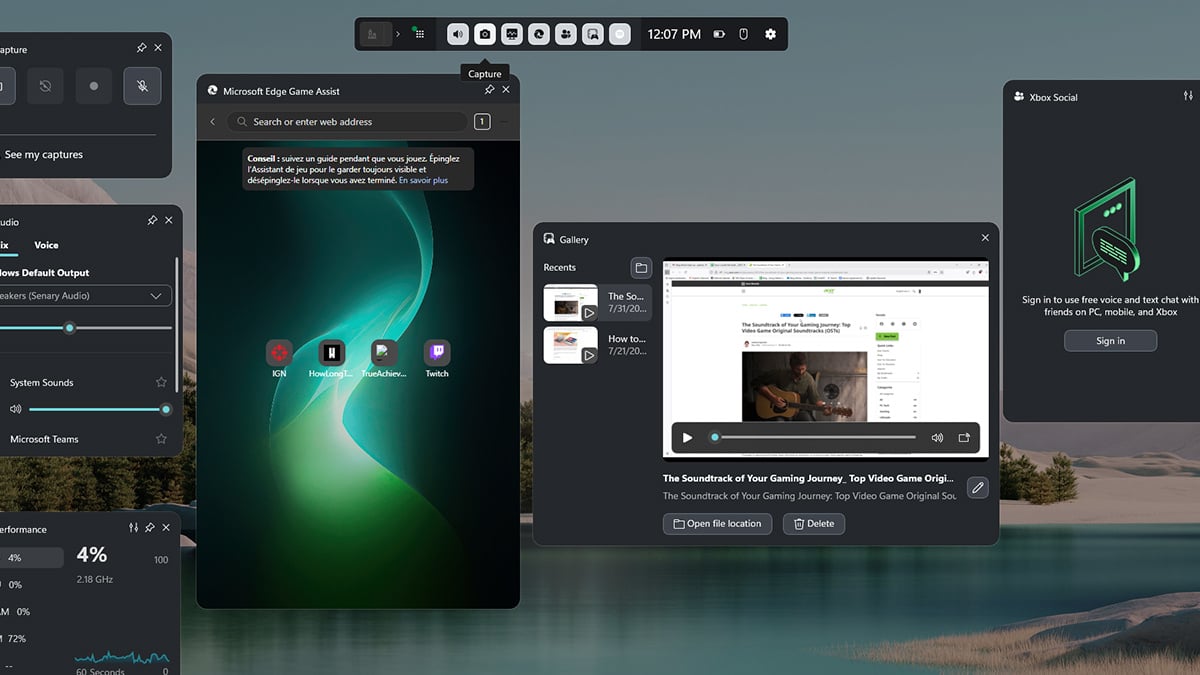
Xbox Game Bar is the most reliable built-in way to record your screen in Windows 11. It works well for apps, browsers, presentations, and gameplay, and it requires no setup.
Step-by-step: Record your screen with Xbox Game Bar
- Open the app or window you want to record.
- Press Windows + G to open Xbox Game Bar.
- Open the Capture widget (if you don’t see it, click the Capture icon in the toolbar).
- Click Start recording or press Windows + Alt + R.
- (Optional) Turn on your microphone by clicking the mic icon or pressing Windows + Alt + M.
- When you’re done, click Stop recording or press Windows + Alt + R again.
Where recordings are saved
By default, videos are saved to: Videos → Captures
Files are recorded in MP4 format and can be edited or shared immediately.
Limitations to keep in mind
- Cannot record the desktop or File Explorer
- Records one app at a time
- No built-in video editing tools
If you are recording tutorials, software walkthroughs, or gameplay clips, Xbox Game Bar is usually the best starting point.
How to video record your screen in Windows 11 using the Snipping Tool
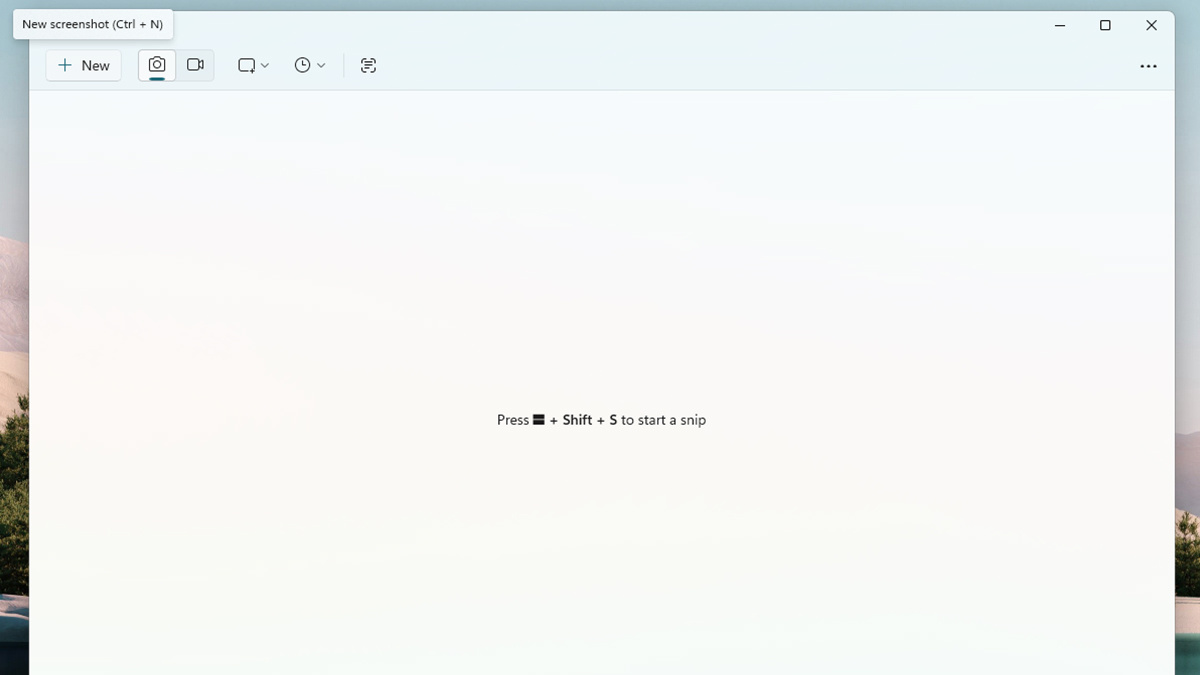
The Snipping Tool in Windows 11 includes a basic screen recording feature designed for short clips and quick demonstrations. It is easy to use and does not require keyboard shortcuts.
Step-by-step: Record your screen with the Snipping Tool
- Open Snipping Tool (Start menu search: “Snipping Tool”).
- Click the Record (or Windows + Shift + R) option at the top to switch to screen recording.
- Click New.
- Click and drag to select the area of the screen you want to record.
- Click Start to begin recording.
- Click Stop when finished.
- In the preview window, click Save and choose where to store the video.
Where recordings are saved
After stopping the recording, the video opens in the Snipping Tool preview window. From there, you can save it to a location of your choice.
Limitations to keep in mind
- Limited audio controls
- Not suitable for long recordings
- No advanced recording or editing options
Conclusion
Windows 11 offers built-in screen recording tools that cover most everyday needs without requiring additional software. Xbox Game Bar is ideal for recording apps, browser windows, and gameplay with audio, while the Snipping Tool works well for short clips and quick demonstrations.
Both options are easy to access, require minimal setup, and save recordings in standard video formats that can be shared or edited immediately. While they do not replace full-featured screen recording software, they are more than sufficient for tutorials, presentations, troubleshooting, and casual content creation.
If you need advanced features such as desktop capture, multi-monitor recording, or professional editing tools, third-party software may be worth exploring. For most users, however, Windows 11’s built-in screen recording options are a fast and reliable place to start.
Here’s a clean, copy-paste-ready FAQ section you can place after the conclusion, written for SEO and GEO in American English and consistent with the rest of the article.
FAQ
Can Windows 11 record the screen without installing software?
Yes. Windows 11 includes built-in screen recording through Xbox Game Bar and the Snipping Tool. These tools allow you to record apps, browser windows, and selected screen areas without downloading third-party software.
What is the easiest way to record your screen in Windows 11?
Xbox Game Bar is the easiest option for most users. Pressing Windows + G opens the recording tools instantly, and you can start recording with a single shortcut.
Can I record the Windows desktop in Windows 11?
The built-in tools in Windows 11 cannot reliably record the full desktop or File Explorer. If you need full desktop capture, third-party screen recording software is required.
Does screen recording in Windows 11 include audio?
Yes, Xbox Game Bar can record system audio and microphone input. The Snipping Tool has limited or no audio control, depending on your Windows version.
Where are screen recordings saved in Windows 11?
Xbox Game Bar saves recordings automatically to Videos > Captures. Snipping Tool recordings are saved to a location you choose when you click Save.
Is Xbox Game Bar only for games?
No. Despite the name, Xbox Game Bar works with most apps and browsers in Windows 11. It is commonly used for tutorials, presentations, and software demonstrations in addition to gaming.
What video format does Windows 11 use for screen recordings?
Windows 11 screen recordings are typically saved in MP4 format, which is widely supported and easy to edit or share.
Do screen recordings affect performance in Windows 11?
Screen recording can use additional CPU and GPU resources, especially during gameplay or high-resolution recording. On most modern systems, the performance impact is minimal.
Recommended Products








