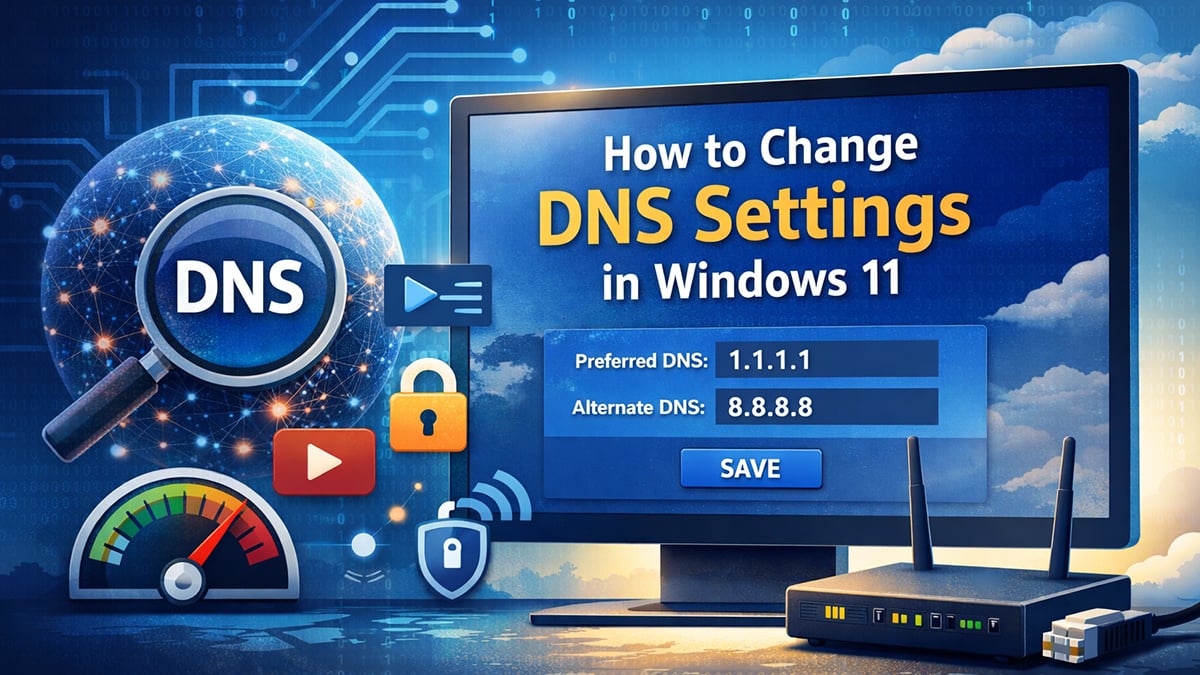
Changing your DNS server settings in Windows 11 is one of the simplest ways to improve internet speed, reliability, privacy, and even access to certain websites without upgrading your hardware or switching ISPs. Whether you are dealing with slow page loads, unstable connections, or ISP-level filtering, using a custom DNS provider can make a noticeable difference in everyday browsing, gaming, and streaming. This guide explains what DNS is, why it matters, and how to change DNS server settings in Windows 11 using several easy methods.
What is DNS?
DNS, or the Domain Name System, functions as the internet’s address book. Its job is to translate easy-to-remember website names into numerical IP addresses that computers and servers use to locate each other on the network.
When you enter a website address into your browser, Windows 11 sends a request to a DNS server asking, “Where is this site hosted?” The DNS server responds with the correct IP address, allowing your browser to connect to the destination server and load the page. This entire process typically takes milliseconds and happens every time you open a website, refresh a page, launch an online game, or connect to a cloud-based application.
DNS lookups are not limited to web browsing. They are also used by email clients, software updates, streaming services, voice chat, and many background system processes. Because of this, DNS performance and reliability have a direct impact on how responsive your internet connection feels overall.
By default, Windows 11 uses DNS servers assigned automatically by your internet service provider. While convenient, ISP DNS servers can be slower, poorly maintained, or subject to filtering, logging, or regional restrictions. Switching to a third-party DNS provider can improve resolution speed, reduce connection errors, and give you more control over privacy and security at the system level.
Why change your DNS server settings in Windows 11?
Changing your DNS server settings in Windows 11 can improve performance, stability, privacy, and overall control over your internet connection. While your ISP’s default DNS usually works, it is often not optimized for speed or user choice.
1. Faster website loading and lower latency
Some public DNS providers operate larger, better-distributed global networks than ISP DNS servers. This can reduce lookup times, making websites load faster and improving responsiveness in online games and real-time applications.
2. More reliable connections
ISP DNS servers can occasionally go down or become overloaded, leading to slow page loads or websites failing to open entirely. Switching to a well-maintained DNS provider can reduce timeouts and intermittent connection issues.
3. Improved privacy
Many third-party DNS services have clearer privacy policies than ISPs and may limit how long queries are logged or whether they are logged at all. Some providers also support encrypted DNS, which prevents third parties from seeing the websites your system is requesting.
4. Bypassing ISP filtering and DNS-based blocks
Some internet providers use DNS to block or redirect certain websites. Changing your DNS server can help avoid DNS-level filtering, which is especially useful when legitimate sites fail to load or are incorrectly restricted.
5. Built-in security and filtering options
Certain DNS providers offer malware blocking, phishing protection, or optional family-safe filters. These features operate at the DNS level, providing protection across all browsers and applications on your Windows 11 system without installing extra software.
For these reasons, adjusting DNS settings is often one of the quickest and least disruptive ways to improve your Windows 11 networking experience.
How do I change DNS server settings in Windows 11?
Windows 11 gives you several ways to change DNS server settings, depending on whether you prefer a modern interface, legacy tools, or command-line control. All methods achieve the same result, so you can choose the one that fits your workflow.
Recommended DNS servers for Windows 11
Before changing your DNS server settings in Windows 11, it helps to know which DNS providers are worth using. Below are some of the most reliable and commonly recommended DNS services, each suited to different needs such as speed, privacy, or security.
1. Cloudflare (Fast and privacy-focused)
- Preferred DNS: 1.1.1.1
- Alternate DNS: 1.0.0.1
Cloudflare is widely regarded as one of the fastest DNS providers available. It emphasizes user privacy, limits query logging, and supports DNS encryption in Windows 11.
2. Google Public DNS (Reliable and widely compatible)
- Preferred DNS: 8.8.8.8
- Alternate DNS: 8.8.4.4
Google Public DNS is known for reliability and global availability. It is a solid option if you want stable performance and broad compatibility across networks and applications.
3. Quad9 (Security-focused)
- Preferred DNS: 9.9.9.9
- Alternate DNS: 149.112.112.112
Quad9 blocks access to known malicious domains by default, making it a good choice for users who want extra protection against malware and phishing without installing additional software.
4. OpenDNS by Cisco (Custom filtering options)
- Preferred DNS: 208.67.222.222
- Alternate DNS: 208.67.220.220
OpenDNS offers optional content filtering and parental controls, which can be useful for shared or family PCs running Windows 11.
Once you have chosen a DNS provider, you can apply it using any of the methods below. All approaches change the same system-level settings, so the results will be identical regardless of which method you use.
Method 1: Change DNS using Windows 11 Settings (recommended)
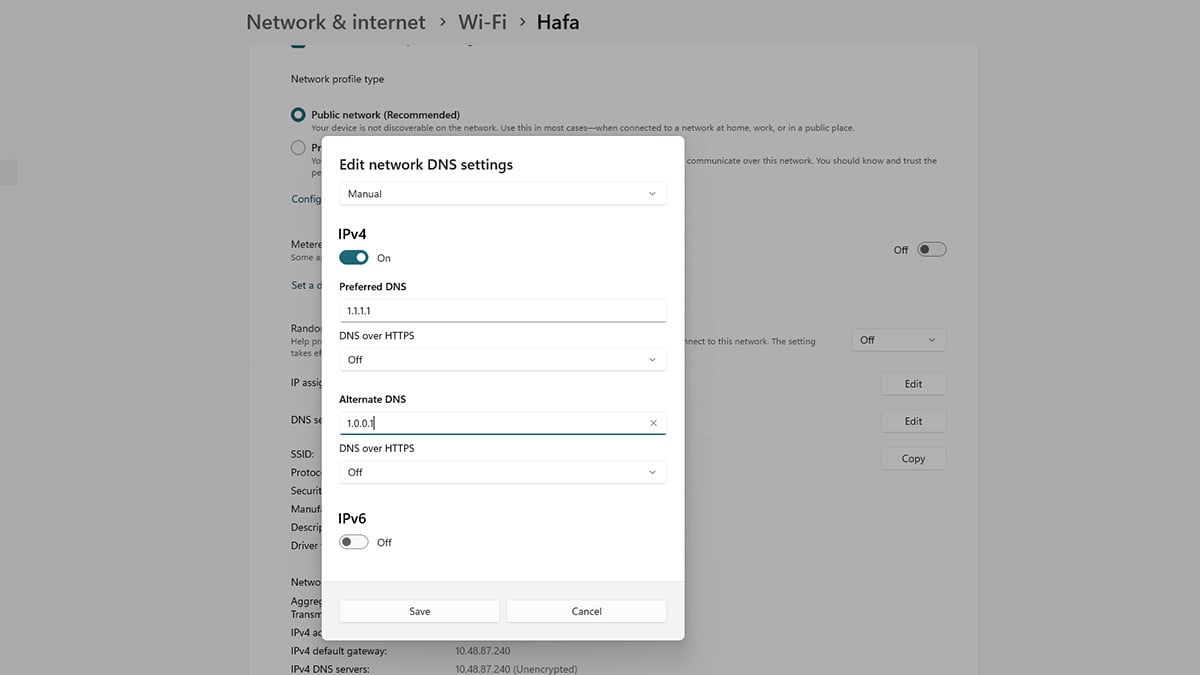
This is the easiest and most user-friendly method.
- Right-click Start and select Settings
- Go to Network & internet
- Select your active connection:
- Wi-Fi → click the connected network
- Ethernet → click Ethernet
- Find DNS server assignment and click Edit
- Change Automatic (DHCP) to Manual
- Turn IPv4 on
- Enter your preferred DNS servers, for example:
- Preferred DNS: 1.1.1.1
- Alternate DNS: 1.0.0.1
- (Optional) Set DNS encryption to Encrypted preferred
- Click Save
Your DNS changes apply immediately.
Method 2: Change DNS using Control Panel (classic method)
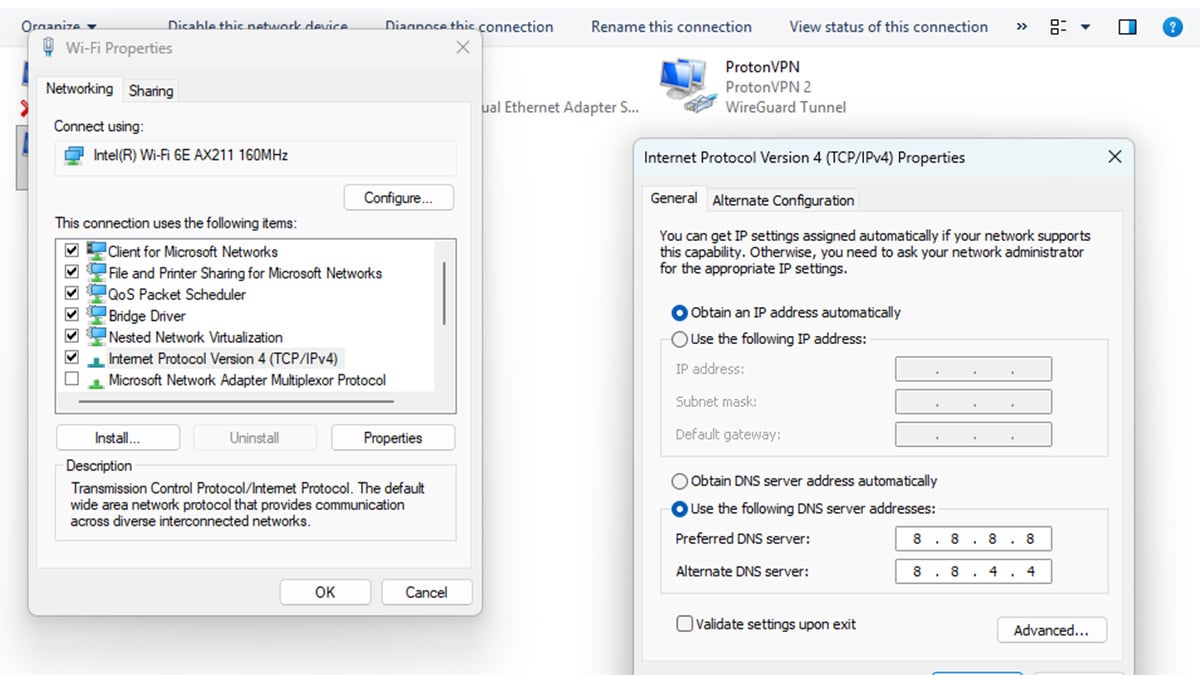
This method is useful if you prefer the traditional Windows networking interface.
- Press Win + R, type ncpa.cpl, and press Enter
- Right-click your active network adapter and select Properties
- Double-click Internet Protocol Version 4 (IPv4)
- Select Use the following DNS server addresses
- Enter your DNS servers:
- Preferred DNS: 8.8.8.8
- Alternate DNS: 8.8.4.4
- Click OK, then Close
This method works on both Windows 10 and Windows 11.
Method 3: Change DNS using Command Prompt (advanced users)

This is the fastest option if you are comfortable with command-line tools.
- Open Command Prompt as Administrator
- List network adapters: netsh interface show interface
- Set DNS for your active adapter (replace “Wi-Fi” if needed):
- netsh interface ip set dns name="Wi-Fi" static 1.1.1.1
- netsh interface ip add dns name="Wi-Fi" 1.0.0.1 index=2
Changes take effect immediately without a reboot.
Verify your DNS settings

To confirm the change:
- Open Command Prompt
- Run: ipconfig /all
- Look for DNS Servers under your active network adapter
This ensures Windows 11 is using the DNS servers you specified.
Conclusion
Changing your DNS server settings in Windows 11 is a simple system-level tweak that can noticeably improve how your internet connection performs day to day. Whether your goal is faster website loading, more reliable connections, better privacy, or added security, switching away from your ISP’s default DNS gives you more control with minimal effort.
Windows 11 makes it easy to apply custom DNS settings using built-in tools, and the changes take effect immediately without requiring new hardware, software, or a system restart. If you ever need to revert, you can switch back to automatic DNS at any time.
For most users, a well-known public DNS provider offers better performance and stability than ISP defaults. Taking a few minutes to update these settings is one of the quickest ways to optimize your Windows 11 networking experience without touching anything else on your system.
FAQ
Does changing DNS in Windows 11 make my internet faster?
Changing DNS can improve how quickly websites and services respond, especially if your ISP’s DNS servers are slow or unreliable. While DNS does not increase your actual bandwidth, faster resolution times can make browsing, gaming, and streaming feel more responsive.
Is it safe to change DNS server settings in Windows 11?
Yes. Changing DNS settings is safe and fully supported by Windows 11. You can switch back to automatic DNS at any time if needed, and the change does not affect your hardware, files, or installed applications.
Which DNS server is best for Windows 11?
For most users, Cloudflare and Google Public DNS offer the best balance of speed and reliability. Users focused on security may prefer Quad9, while those who want filtering options may choose OpenDNS. The best choice depends on whether you prioritize speed, privacy, or protection.
Will changing DNS affect online gaming?
In many cases, yes. Faster DNS resolution can reduce connection delays when joining online games or connecting to servers. While it will not lower in-game ping directly, it can improve stability and reduce failed connections.
Does changing DNS help with privacy?
Some third-party DNS providers offer better privacy policies than ISPs and support encrypted DNS, which helps prevent third parties from viewing your DNS queries. This improves privacy at the network level, though it does not make you anonymous online.
Do I need to restart my computer after changing DNS settings?
No. DNS changes in Windows 11 take effect immediately. You do not need to restart your PC, though restarting your browser can help ensure the new settings are applied.
Can I use different DNS servers for Wi-Fi and Ethernet?
Yes. Windows 11 allows you to configure DNS settings separately for each network adapter. This is useful if you want different behavior depending on how you connect to the internet.
How do I undo DNS changes in Windows 11?
You can revert to your original settings by changing DNS server assignment back to Automatic (DHCP) in the Network & internet settings. This restores your ISP’s default DNS servers.
Recommended Products