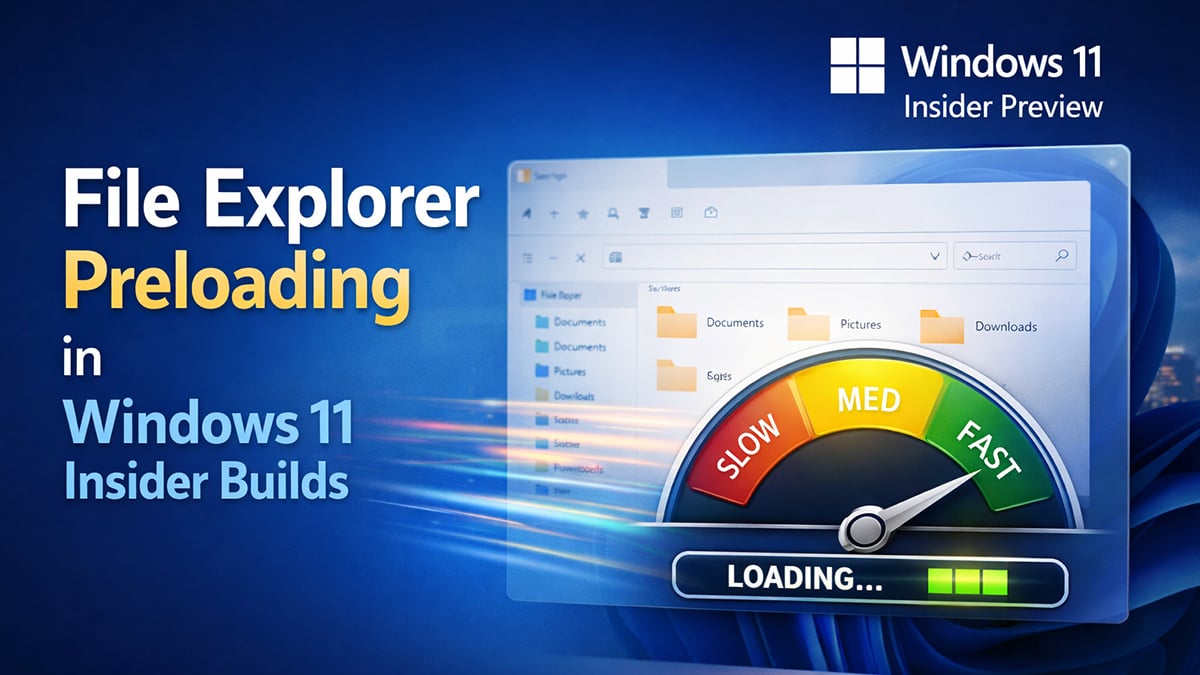
File Explorer preloading is a new, experimental performance feature Microsoft began testing in Windows 11 build 26220.7271 and newer Insider builds. Instead of waiting for you to open File Explorer, Windows quietly loads parts of it in the background so it can launch faster when needed. The change is subtle and usually invisible, with the only noticeable difference being reduced startup delay when opening File Explorer.
As of now, File Explorer preloading is not available in stable Windows 11 releases. It currently appears only in Dev and Beta channels, and in some cases must be manually enabled through advanced settings. This guide explains what File Explorer preloading actually does, who can use it, whether it is worth enabling, and how to turn it on or off safely if your Windows 11 build supports it.
Pros of preloading in Windows 11 File Explorer
Preloading exists to improve responsiveness, and on many systems, it does exactly that.
Faster folder access
Frequently opened folders and system locations load more quickly because metadata and thumbnails are already cached.
Smoother File Explorer navigation
UI elements such as side panels, previews, and directory trees feel more responsive when assets are preloaded.
Better performance on modern hardware
Systems with ample RAM and fast SSDs benefit the most, since background memory usage has little impact.
Improved experience with large folders
Folders containing many images, videos, or documents open faster when thumbnails and file details are prepared in advance.
Reduced delays when reopening File Explorer
Closing and reopening File Explorer often feels instant because recent state and content are already in memory.
Cons of preloading in Windows 11 File Explorer
Preloading is not always beneficial, especially on constrained systems or for users who prefer minimal background activity.
Higher memory usage
Preloading consumes RAM, even when File Explorer is not actively being used.
Increased background disk activity
On systems with slower storage, background reads can cause noticeable delays elsewhere.
Less predictable performance
File Explorer may feel busy or sluggish at startup as background tasks run.
Unnecessary overhead for infrequent use
If you rarely browse files or prefer manual navigation, preloading provides little benefit.
Can impact older or low-RAM systems
Devices with limited memory or older CPUs may feel slower with aggressive preloading enabled.
Should you turn preloading on or off?
There is no universal best setting. The right choice depends on your hardware and how you use File Explorer.
You should leave preloading enabled if:
- Your system has 16 GB of RAM or more
- You use an SSD
- You frequently work with large folders or media libraries
- You value smoother navigation over minimal resource usage
You may want to reduce or disable preloading behaviors if:
- Your system has limited RAM
- You use older hardware
- File Explorer feels slow or inconsistent
- You prefer lower background activity
Rather than fully disabling preloading, many users get better results by selectively turning off specific features that contribute to it.
How to enable or disable preloading in Windows 11 File Explorer
Option 1: Enable or disable File Explorer preloading using Folder Options (supported method)
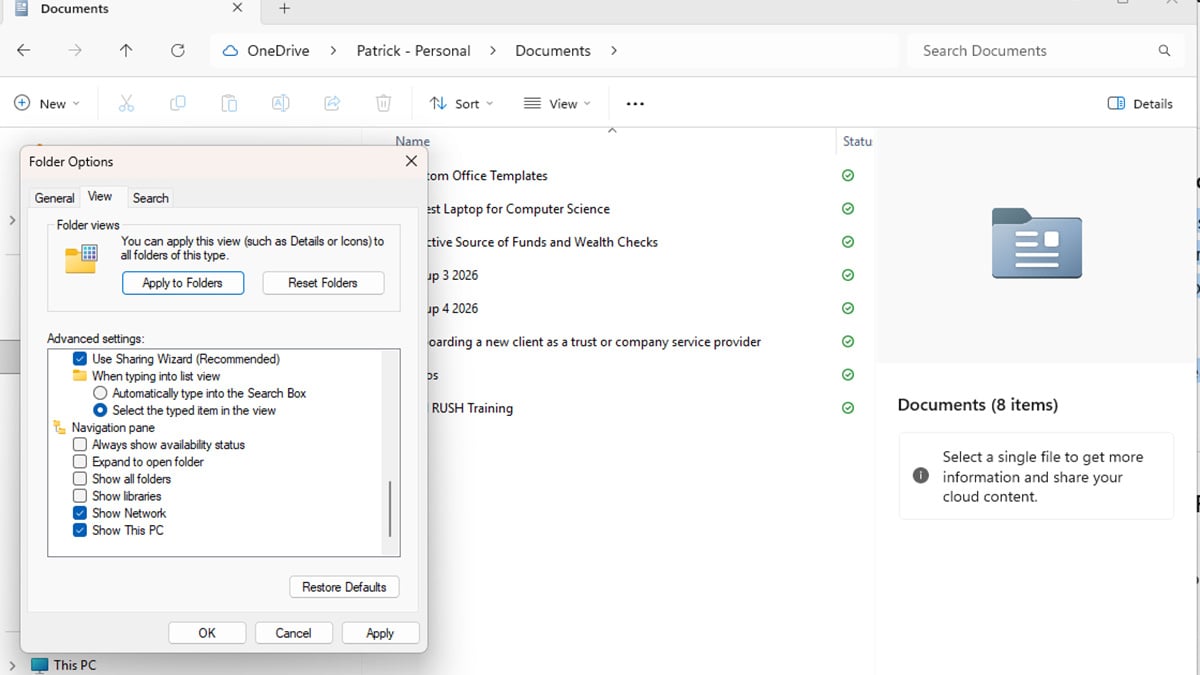
If your Windows 11 build supports File Explorer preloading, Microsoft exposes a dedicated toggle in Folder Options.
Steps
- Open File Explorer
- Click the three dots ( … ) in the command bar
- Select Options
- Open the View tab
- Under Advanced settings, do one of the following:
- Check Enable window preloading for faster launch times to enable it
- Uncheck Enable window preloading for faster launch times to disable it
- Click OK
This setting applies per user account and takes effect immediately. A system restart is not required.
If you do not see this option, your Windows 11 build does not yet support File Explorer preloading through the UI.
Option 2: Enable or disable File Explorer preloading using the Registry (advanced)
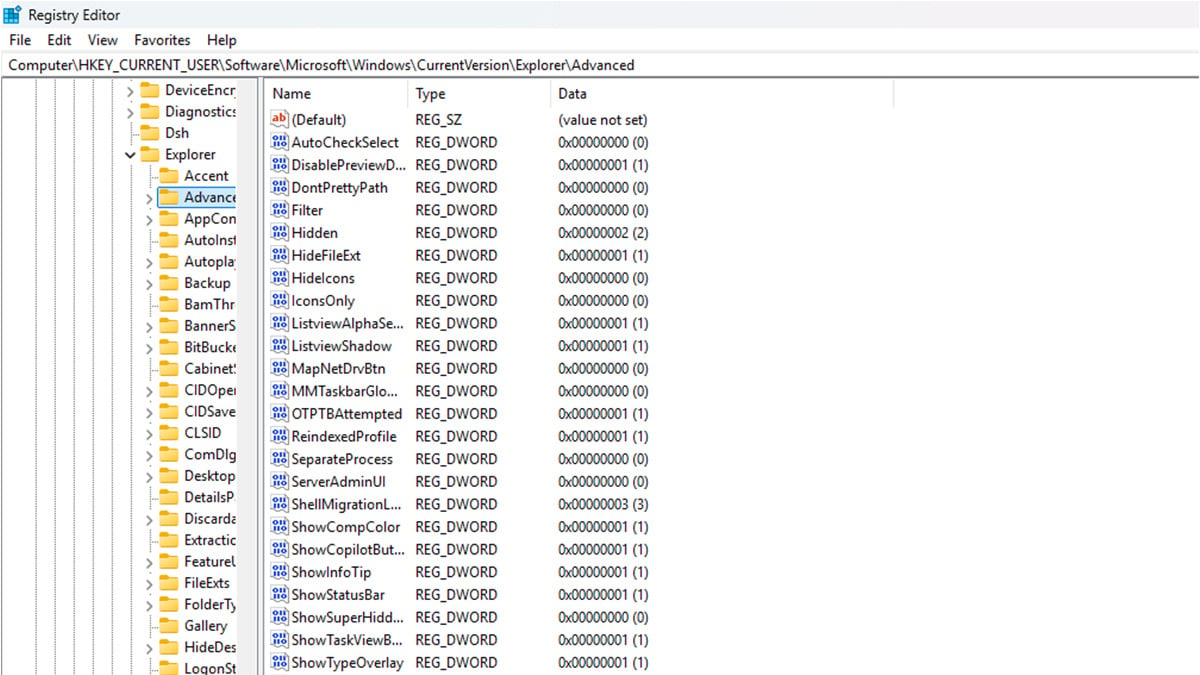
This method directly controls the setting used by File Explorer and works even when the UI toggle is present or hidden.
Enable File Explorer preloading (default behavior)
- Press Win + R, type regedit, and press Enter
- Navigate to:
HKEY_CURRENT_USER\Software\Microsoft\Windows\CurrentVersion\Explorer\Advanced - Create or modify the DWORD value:
ShouldPrelaunchFileExplorer = 1 - Close Registry Editor
- Restart File Explorer or sign out and back in
Disable File Explorer preloading
- Open Registry Editor
- Navigate to:
HKEY_CURRENT_USER\Software\Microsoft\Windows\CurrentVersion\Explorer\Advanced - Set the DWORD value:
ShouldPrelaunchFileExplorer = 0 - Close Registry Editor
- Restart File Explorer or sign out and back in
This disables background preloading entirely for the current user.
Final thoughts
Preloading in Windows 11 File Explorer is designed to make navigation feel faster, not to waste system resources. On modern systems, it often improves responsiveness without noticeable downsides. On older or resource-limited hardware, it can feel excessive and unnecessary.
The best approach is not to blindly disable everything, but to understand which features affect your system and adjust them selectively. With a few targeted changes, you can make File Explorer feel faster, lighter, and more consistent without breaking core functionality.
FAQ
What is preloading in Windows 11 File Explorer?
Preloading is a background process where Windows 11 prepares File Explorer content in advance. This can include folder metadata, thumbnails, previews, and frequently accessed locations so they load faster when you open them.
Is preloading the same as Windows Prefetch or Superfetch?
No. Windows Prefetch and Superfetch focus on speeding up application and system startup. File Explorer preloading is more limited in scope and is focused on file browsing, thumbnails, previews, and navigation responsiveness.
Is there a single setting to turn preloading on or off?
No. Windows 11 does not provide a single toggle labeled “preloading.” Instead, it is controlled indirectly through File Explorer options, privacy settings, thumbnail behavior, preview panes, and background activity.
Does preloading slow down Windows 11?
On modern systems with enough RAM and an SSD, preloading usually improves responsiveness and does not cause slowdowns. On older systems or PCs with limited memory, it can contribute to higher background usage and make File Explorer feel sluggish.
Does disabling preloading improve performance?
It can, but only in specific situations. Disabling thumbnails, previews, or recent file tracking may help on low-RAM or older systems. On newer systems, disabling these features often provides little to no benefit.
Does preloading affect SSD lifespan?
The impact is minimal. File Explorer preloading involves light background reads and occasional caching, which are negligible compared to normal system usage. It is not considered harmful to SSD longevity.
Should gamers disable File Explorer preloading?
In most cases, no. File Explorer is rarely active during gaming. If you are extremely resource-conscious on a low-end system, reducing background features may help slightly, but the impact is usually minor.
Does preloading collect personal data?
Preloading analyzes local usage patterns, such as recently opened folders, but it does not upload file contents. You can limit this behavior by disabling recent files and frequent folders in File Explorer settings.
Can preloading cause File Explorer to crash?
Preloading itself does not usually cause crashes. However, thumbnail generation or preview handlers for corrupted files can sometimes trigger instability. Disabling thumbnails or the preview pane can help in those cases.
What is the best balance for most users?
For most Windows 11 users, leaving preloading enabled while disabling only unnecessary features like previews for large media folders provides the best balance between speed and resource usage.
Recommended Products