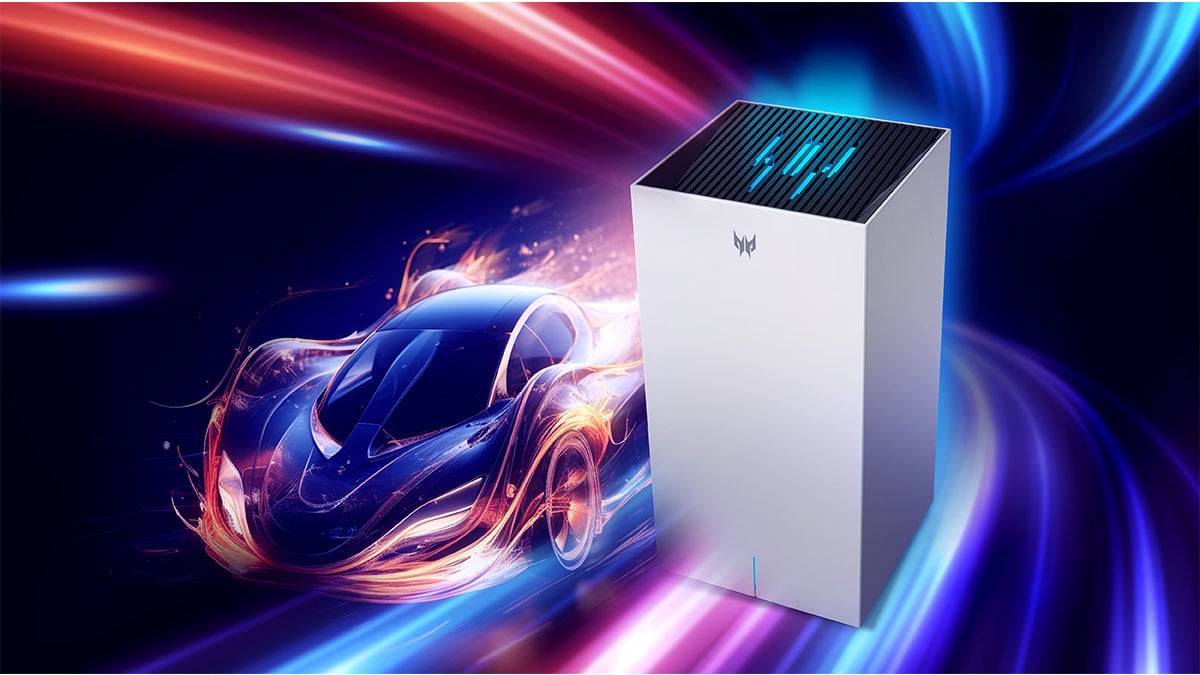
Improving your internet speed starts with understanding what affects it and what you can do to make it faster. Many people look up how to increase internet speed because their connection feels slow, buffers during streaming, or drops during video calls. The truth is that your provider’s advertised speeds are often the theoretical maximum, not what you get at home every day. Several outside factors can weaken your connection, from old hardware to Wi-Fi interference. In this guide, you will learn why your internet might feel slow, how to test your internet speed, and how you can increase internet speed with simple fixes you can do today. This article covers everything you need, so you will not be left with unanswered questions.
The importance of internet speed
Internet speed affects almost everything you do online. A fast and stable connection makes streaming smoother, downloads quicker, and online games more responsive. It also helps video calls stay clear without lagging or freezing. Even simple tasks like browsing websites feel faster when your connection is strong.
Many homes now have multiple devices connected at the same time. Phones, laptops, tablets, TVs, smart speakers, and gaming consoles all share the same network. If your internet speed is too low, these devices compete for bandwidth and slow each other down. Strong internet speed ensures your entire household can work, study, and relax without interruptions.
Good internet speed also matters for security. When your network struggles, updates may fail to install correctly, leaving your devices exposed. A stable connection keeps everything up to date and working the way it should.
Overall, faster internet improves convenience, productivity, and the quality of your online experience.
Why your internet speed is not always what the provider advertises
Internet providers often promote speeds that represent the highest possible performance under perfect conditions. In reality, most people never see those exact numbers at home. Advertised speeds are based on laboratory-style tests where the connection is wired, isolated, and free from interference. At home, your speed depends on real-world conditions that are rarely ideal.
Another reason for the difference is network congestion. When many people in your area use the internet at the same time, your provider’s network can slow down. This is common during peak hours, such as evenings when everyone is streaming video, downloading files, or gaming online. Even if you pay for a high-speed plan, you share parts of the network with other households.
Your provider may also use “up to” language in your contract. This means they are promising a maximum speed, not a guaranteed one. While this is legally allowed, it often leads customers to expect far more than what their actual setup can deliver.
Finally, the type of connection matters. Fibre connections usually provide speeds close to what is advertised. Cable, DSL, and satellite connections vary more because of distance, line quality, and weather conditions. This is why two people with the same plan can still get different results.
Outside of your provider, what other factors affect your internet speed
Even if your provider delivers the correct speed to your home, many things inside your house can still slow it down. Here are the most common factors:
- Your Wi-Fi router
Older routers may not support faster speeds. Placement also matters. Walls, floors, metal appliances, and furniture can weaken the signal. - Device limitations
Some devices cannot use faster Wi-Fi bands. For example, many older laptops and phones only support the 2.4 GHz band and not the faster 5 GHz band. If a device cannot connect to 5 GHz, it will stay on the slower band even if your router supports higher speeds. Outdated Wi-Fi chips, old network drivers, and limited hardware can also prevent devices from reaching modern speeds. Background apps and downloads can slow devices even further. - Signal interference
Microwaves, cordless phones, Bluetooth devices, baby monitors, and neighbours’ Wi-Fi networks can disrupt your signal. - Distance from the router
Wi-Fi loses strength as you move farther away. Rooms on different floors or behind thick walls often get noticeably slower speeds. - Wired vs wireless connections
Ethernet cables provide the most stable speeds. Wi-Fi is more convenient but much more affected by distance and interference. - Software problems
Malware, outdated operating systems, and heavy browser extensions can slow devices and make your connection feel weaker than it actually is.
Understanding internet types and Wi-Fi bands
Your internet speed also depends on the type of connection you have and the Wi-Fi band your devices use. These two factors can create major differences in how fast your home network feels, even if you pay for a high-speed plan.
Types of home internet
Different internet technologies perform very differently in real-world conditions:
- Fibre internet
The fastest and most reliable option. It uses light signals through fibre-optic cables and often delivers speeds close to what your provider advertises. - Cable internet
Uses the same coaxial cables as cable TV. It can be fast, but speeds may drop during busy hours when many people in your neighbourhood are online. - DSL internet
Uses old telephone wiring. It is slower than fibre and cable, and speed drops the farther you are from the provider’s service hub. - Fixed wireless
Provides internet through a wireless signal from a nearby tower. Performance depends on distance, weather, and obstacles. - Satellite internet
Available almost anywhere, but speed can be limited. Latency is usually higher because the signal travels long distances.
Knowing your connection type helps you understand what speeds you can realistically expect.
2.4 GHz vs 5 GHz vs 6 GHz Wi-Fi bands
Most modern routers offer multiple Wi-Fi bands. Each band has different strengths:
- 2.4 GHz band
Slower but reaches farther. Best for older devices or rooms far from the router. It is also more crowded because many household devices use this frequency. - 5 GHz band
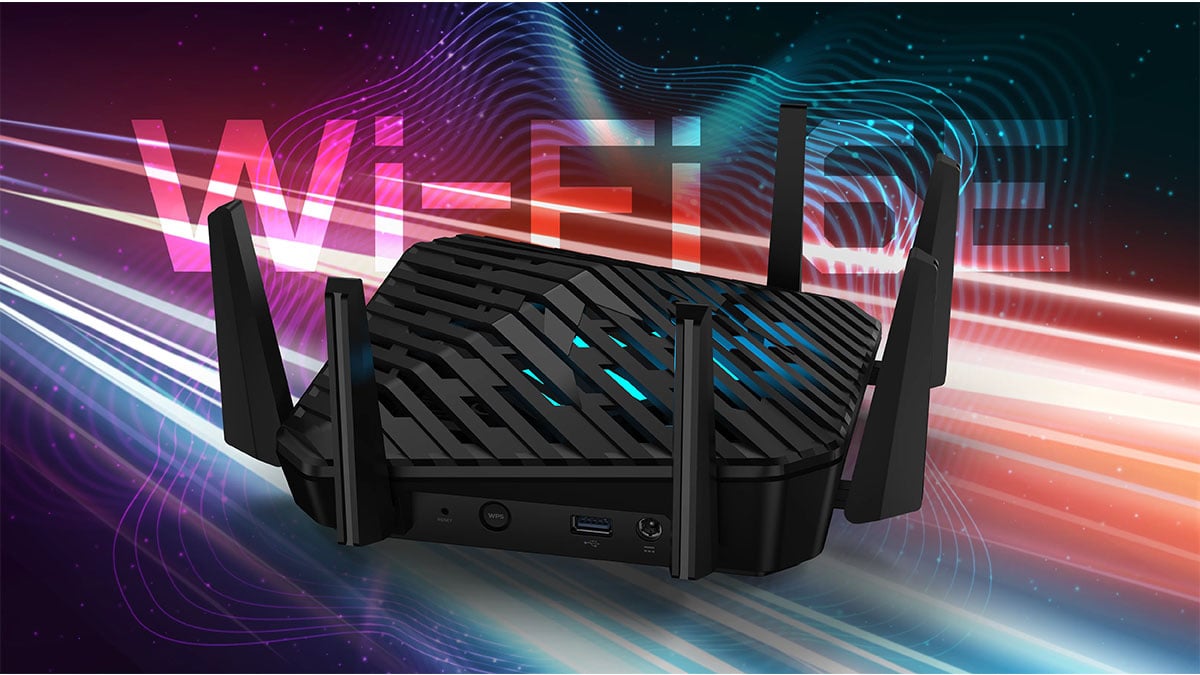
Much faster but has a shorter range. Ideal for laptops, phones, and smart TVs that are in the same room or nearby. Less interference and better performance for streaming and gaming. - 6 GHz band (Wi-Fi 6E and Wi-Fi 7)
The fastest option with very low congestion. Works best for devices that support it and perform closest to the router. Great for high-speed downloads, 4K and 8K streaming, and gaming.
Why this matters
If a device only supports the 2.4 GHz band or does not support Wi-Fi 6 or Wi-Fi 6E, it cannot reach the full speed of a modern internet plan. Likewise, even the fastest plan will feel slow on DSL or a dated router.
Choosing the right band and understanding your connection type helps you get the best performance out of your network without guessing.
How to test your internet speed
Testing your internet speed is the easiest way to see what you are actually getting compared to what you are paying for. A simple test can show your download speed, upload speed, and ping. These numbers help you understand whether the problem is with your provider, your home setup, or a specific device.
Start by using a trusted speed test tool. Popular options include Speedtest by Ookla, Fast.com by Netflix, or your internet provider’s own testing page. These tools measure your connection in real time and give results in a few seconds.
Before running the test, make sure to follow these steps for the most accurate results:
- Use a wired Ethernet connection if possible. This removes Wi-Fi interference and shows your true maximum speed.
- If you must use Wi-Fi, stand close to your router. This helps reduce signal loss.
- Close apps and downloads on your device. Background activity can lower your test results and make your internet look slower than it really is.
- Run the test on more than one device. If one device is slow and others are fine, the issue is likely with that device, not your internet service.
- Test at different times of the day. Evening hours often show slower speeds due to network congestion in your area.
When you finish testing, compare your results to the speeds on your internet plan. If the results are much lower than expected across multiple devices and connection types, the issue may be on your provider’s end. If only certain devices or areas of your home are slow, you can focus on fixing your home setup instead.
Tips to help you get faster internet at home
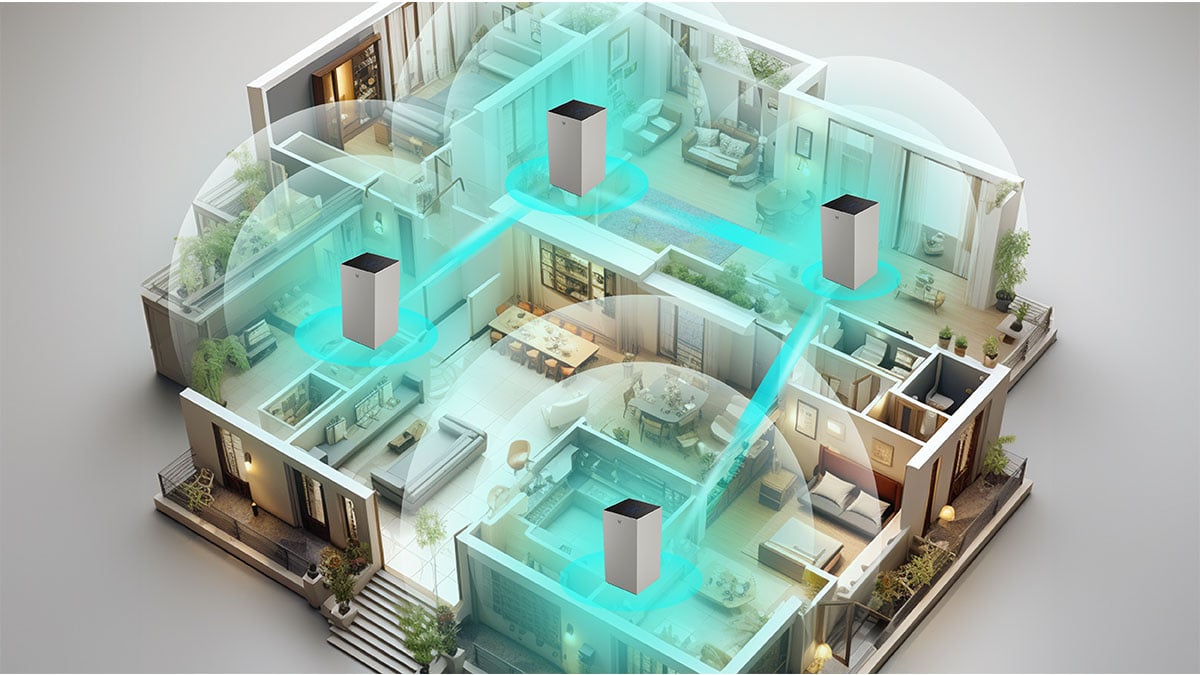
There are several practical steps you can take to improve your internet speed without upgrading your plan. These tips help you reduce interference, strengthen your Wi-Fi signal, and make sure your devices perform at their best.
- Move your router to a better location.
Place it in a central, open area of your home. Avoid corners, closets, and behind large furniture. Higher positions, like on a shelf, often give better coverage. - Restart your router regularly.
Routers can slow down over time because of memory buildup or minor glitches. Restarting it once every week or two can refresh your connection. - Use the 5 GHz band when possible.
If your router offers both 2.4 GHz and 5 GHz, switch capable devices to the 5 GHz network. It is faster and less crowded, although it works best at shorter distances. - Connect important devices with Ethernet.
Gaming consoles, PCs, and smart TVs benefit from a wired connection. Ethernet gives you the fastest and most stable speeds. - Reduce Wi-Fi interference.
Keep your router away from microwaves, cordless phones, baby monitors, and thick walls. Changing your Wi-Fi channel in the router settings can also help in crowded apartment buildings. - Update your router’s firmware.
Manufacturers release updates that fix bugs and improve performance. Most routers let you check for updates in the settings menu. - Upgrade old equipment.
If your router is more than five years old, it may not support modern speeds. Replacing it can instantly improve your network. The same applies to old devices that cannot use faster Wi-Fi standards. - Limit the number of active devices.
When too many devices are streaming, downloading, or gaming at once, your network slows down. Disconnect devices you are not using. - Scan your devices for malware.
Malware can secretly use your bandwidth. Regular scans help keep your devices running smoothly.
These steps can make a noticeable difference in your day-to-day internet performance. Combined with proper speed testing and a clear understanding of how your network works, they help you increase internet speed at home without confusion or guesswork.
Conclusion
Improving your internet speed is easier when you understand what affects it. Once you know how to test your connection and identify the real causes of slow performance, you can fix most problems on your own. Router placement, device limitations, signal interference, and outdated hardware all play a major role in how fast your network feels. With the right steps, you can increase internet speed without confusion and make your home connection more reliable for work, streaming, and gaming.
If you want a more powerful and stable network, upgrading your router is one of the most effective changes you can make. Acer offers several strong options for different homes and budgets:
- Acer Predator Connect T7 Wi-Fi 7 Mesh Router: A future-ready mesh system that brings the benefits of Wi-Fi 7, including faster speeds and much lower latency. It is ideal for large homes or anyone who wants the most advanced performance available.
- Acer Connect Vero W6m (Wi-Fi 6E Mesh Router): A high-performance mesh router with Wi-Fi 6E support and strong coverage. It also uses recycled materials, which makes it a good pick for anyone who wants both speed and sustainability.
- Predator Connect W6x Wi-Fi 6 Gaming Router: A fast and reliable Wi-Fi 6 router built for gaming and heavy streaming. It has features that keep ping stable during online play and handle multiple devices without slowing down.
With the right setup and the right hardware, you can enjoy faster internet throughout your home and avoid the everyday frustrations of lag, buffering, and dropped connections.
Recommended Products
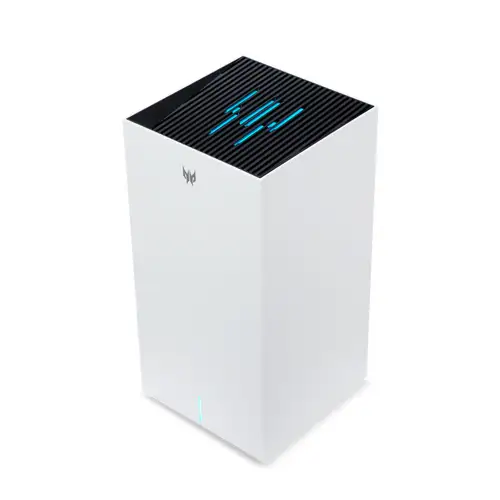
Acer Predator Connect T7 Wi-Fi 7 Mesh Router
Buy Now |
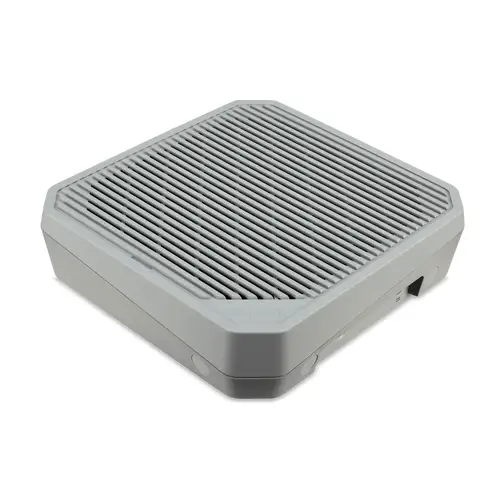
Acer Connect Vero W6m (Wi-Fi 6E Mesh Router)
Buy Now |
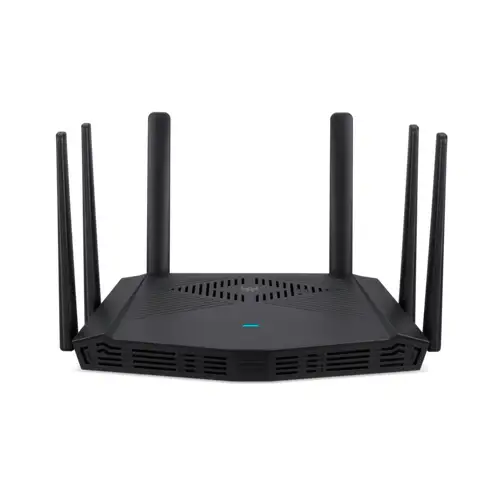
Predator Connect W6x Wi-Fi 6 Gaming Router
Buy Now |
|---|








