Windows 11 relies on telemetry to collect diagnostic and performance data in the background. Microsoft describes this data as essential for maintaining system reliability, security, and compatibility, but for advanced users, telemetry can feel excessive, persistent, and difficult to fully turn off.
While Windows 11 includes privacy controls that reduce diagnostic data collection, these settings do not completely disable telemetry. Core services and scheduled tasks continue to run even after telemetry is set to its lowest level, meaning background data collection and system activity can still occur.
This guide is written for advanced users who want deeper control over Windows 11. It explains what telemetry is, why standard privacy settings are not sufficient, and how to disable telemetry more thoroughly using built-in system tools.
What is telemetry in Windows 11?
Telemetry in Windows 11 refers to the automatic collection and transmission of diagnostic and usage data to Microsoft. This data is gathered by background services and scheduled tasks that monitor system health, feature usage, and overall reliability.
Microsoft states that telemetry is used to improve Windows by identifying bugs, measuring performance, and ensuring compatibility across different hardware configurations. In practice, this includes data such as hardware specifications, driver behavior, feature interaction, and crash reports. As explained in Acer’s overview of Windows 11 telemetry, much of this data collection runs continuously in the background and is not tied to a single user-facing setting.
What often surprises advanced users is that telemetry is not controlled by one master switch. Instead, it is implemented across multiple system components, including services and scheduled tasks that operate independently of the main privacy options. This distributed design is why telemetry can continue running even after diagnostic data is set to its lowest available level.
From a technical perspective, Windows telemetry behaves more like an embedded monitoring layer than an optional feature. Understanding this structure is essential before attempting to disable it more thoroughly.
Why basic privacy settings are not enough

Windows 11 includes several privacy controls that appear to give users control over telemetry. These are primarily found under Settings > Privacy & Security > Diagnostics & feedback, where users can limit diagnostic data and disable optional data collection features.
However, these settings only reduce the amount of data sent to Microsoft. They do not stop telemetry services from running. Even with diagnostic data set to the lowest available level, core background services remain active and continue to collect system information.
The main reason for this is architectural. Telemetry in Windows 11 is handled by multiple components that operate independently of the Settings app. Services such as Connected User Experiences and Telemetry run at the system level, while scheduled tasks related to application compatibility and usage tracking continue to execute on a schedule.
For advanced users, this creates a false sense of control. The interface suggests telemetry has been disabled, but in reality, Windows is still monitoring system behavior and generating background activity. To fully address this, telemetry must be disabled at the service and task level rather than through standard privacy toggles alone.
Why you might want to disable telemetry
Disabling telemetry is not only a privacy decision. For many advanced users, it is a performance and control issue.
Telemetry services run continuously in the background. They collect data, schedule scans, and periodically transmit information, all of which consume system resources. On modern high-end systems this activity may be barely noticeable, but on laptops, older CPUs, or systems already under load, telemetry can contribute to unnecessary CPU usage, disk access, and background wake-ups.
Another concern is predictability. Telemetry-related tasks do not always run at idle. Compatibility scans and data collection jobs can trigger at inconvenient times, leading to brief CPU spikes or increased power consumption. For users who value a quiet, deterministic system, this background behavior can be frustrating.
There is also the principle of control. Advanced users often prefer to decide explicitly which services run on their systems and which do not. Since Windows telemetry cannot be fully disabled through standard settings, leaving it enabled means accepting ongoing background processes that cannot be easily audited or tuned.
For these reasons, many power users choose to disable telemetry at a deeper level. The goal is not to break Windows or block updates, but to reduce unnecessary background activity and regain tighter control over how system resources are used.
How to disable telemetry in Windows 11 using advanced settings
The steps below go beyond Windows’ standard privacy controls and are intended for advanced users who want deeper control over background telemetry services. Make sure you are logged in with an administrator account before proceeding.
Step-by-step: disabling telemetry
1. Open the Services console
Press Win + R, type services.msc, and press Enter.
2. Disable Connected User Experiences and Telemetry
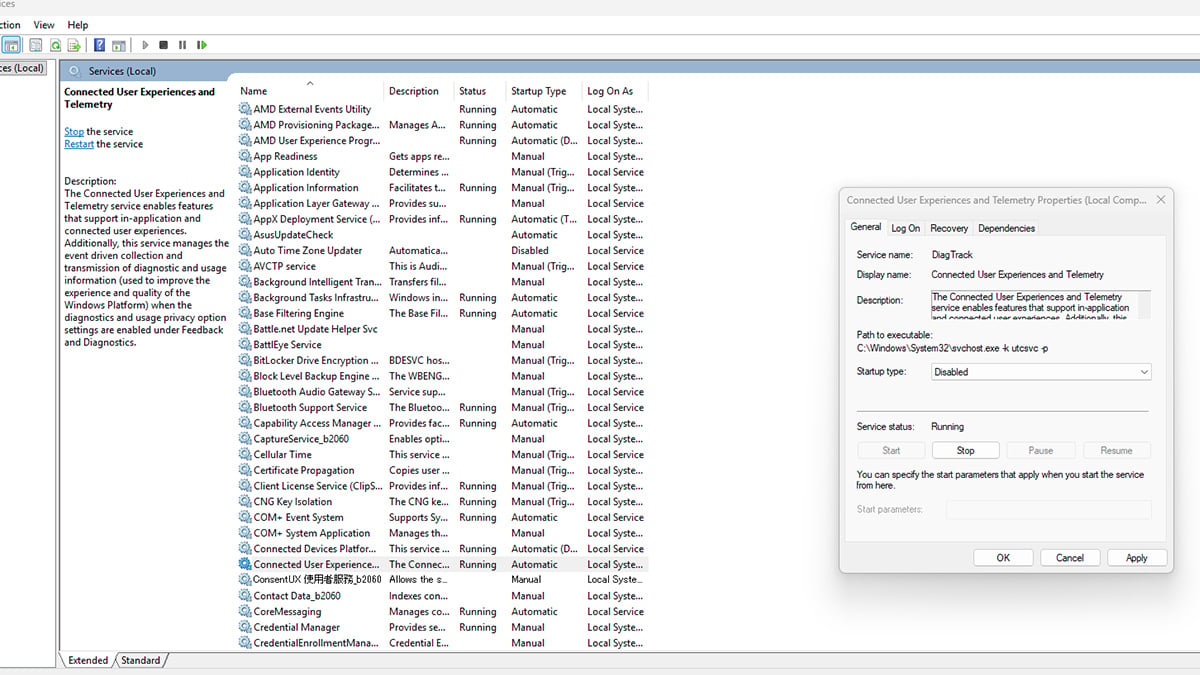
In the Services list, locate Connected User Experiences and Telemetry.
Double-click the service, click Stop, set Startup type to Disabled, then click Apply and OK.
3. Disable Windows Error Reporting Service
Still in the Services console, locate Windows Error Reporting Service.
Double-click the service, click Stop, set Startup type to Disabled, then apply the changes.
4. Open Task Scheduler
Press Win + R, type taskschd.msc, and press Enter.
Navigate to:
Task Scheduler Library > Microsoft > Windows > Application Experience
5. Disable telemetry-related scheduled tasks
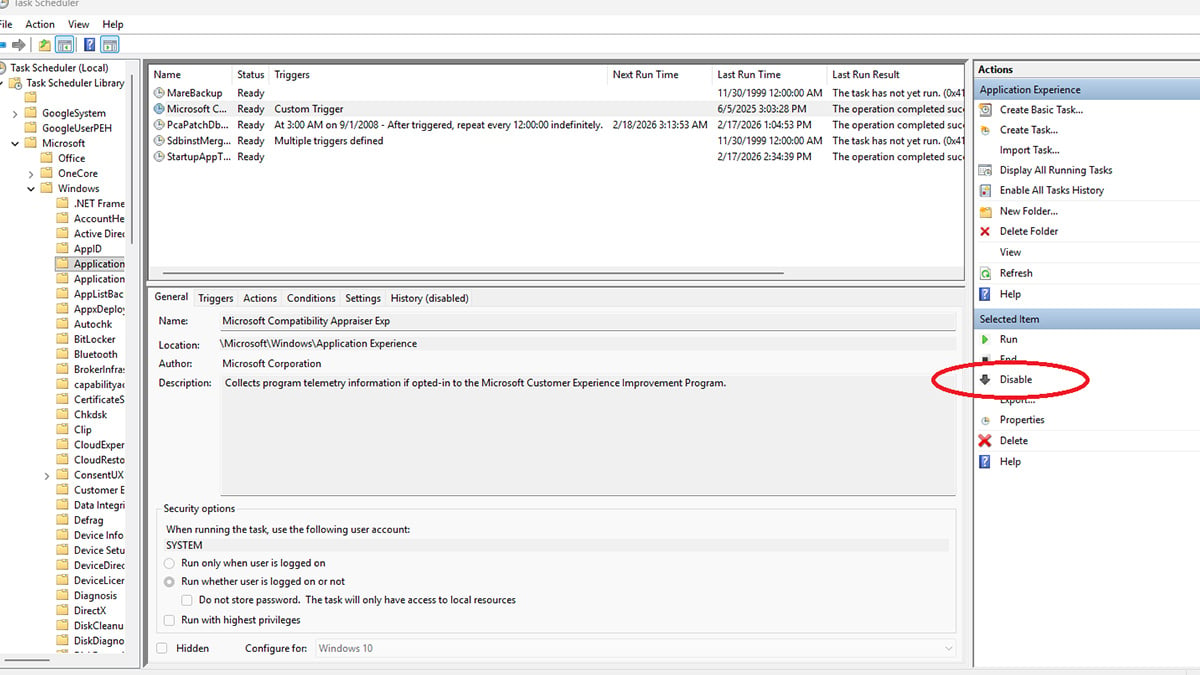
In the Application Experience folder, right-click and disable the following tasks:
- Microsoft Compatibility Appraiser
- ProgramDataUpdater (If you have it)
6. Restart your system
Restart Windows 11 to ensure all changes take effect and disabled services do not restart.
Final notes and warnings
Disabling telemetry in Windows 11 at this level gives you significantly more control over background activity, but it also comes with trade-offs. Microsoft relies on telemetry data to identify bugs, track hardware compatibility, and improve system stability over time. By disabling these services, you may reduce the diagnostic information available to Microsoft if issues arise.
That said, for advanced users who prioritize performance consistency and minimal background processes, the benefits often outweigh the downsides. Reducing telemetry can lower idle CPU usage, cut down on unnecessary background scans, and make system behavior more predictable, especially on laptops or systems with limited resources.
It is also worth noting that major Windows updates may re-enable some telemetry services or scheduled tasks. If you notice telemetry-related activity returning after an update, you may need to revisit these settings.
This approach is not about breaking Windows or blocking updates. It is about taking explicit control over what runs on your system and when. For users who are comfortable managing Windows at a deeper level, disabling telemetry is one of the more effective ways to streamline Windows 11 and reduce unnecessary background overhead.
Frequently asked questions (FAQ)
Will disabling telemetry break Windows 11?
No. Disabling telemetry services and tasks does not break core Windows functionality. Windows 11 will continue to receive updates and function normally. However, Microsoft may have less diagnostic data available if you encounter system issues.
Will Windows updates re-enable telemetry?
In some cases, yes. Major feature updates can re-enable telemetry services or scheduled tasks. Advanced users should occasionally recheck these settings after large updates.
Does disabling telemetry improve performance?
It can. On some systems, especially laptops or older hardware, disabling telemetry reduces background CPU usage, disk activity, and random task scheduling. The improvement is usually incremental rather than dramatic, but it can make idle behavior more consistent.
Is telemetry only about privacy?
No. While privacy is a concern for some users, telemetry also affects system behavior. Background scans, compatibility checks, and reporting tasks consume resources, which is why many users disable telemetry primarily for performance and control reasons.
Can telemetry be fully disabled using only the Settings app?
No. The Settings app only reduces diagnostic data levels. Core telemetry services and scheduled tasks continue to run even when privacy options are set to their lowest level.
Is this approach safe for everyday users?
This guide is intended for advanced users. While the steps are reversible, they involve modifying system services and scheduled tasks. Users who are uncomfortable managing Windows at this level may prefer to leave telemetry enabled or use only the built-in privacy settings.
How can I re-enable telemetry if needed?
Telemetry can be re-enabled by returning the disabled services to their default startup types and re-enabling the scheduled tasks in Task Scheduler. Restarting the system will restore normal telemetry behavior.
Does disabling telemetry stop all data collection?
It significantly reduces telemetry-related activity, but no consumer operating system can guarantee zero data collection. This method focuses on disabling the primary telemetry services and compatibility tasks that generate the most background activity.
Recommended Products








