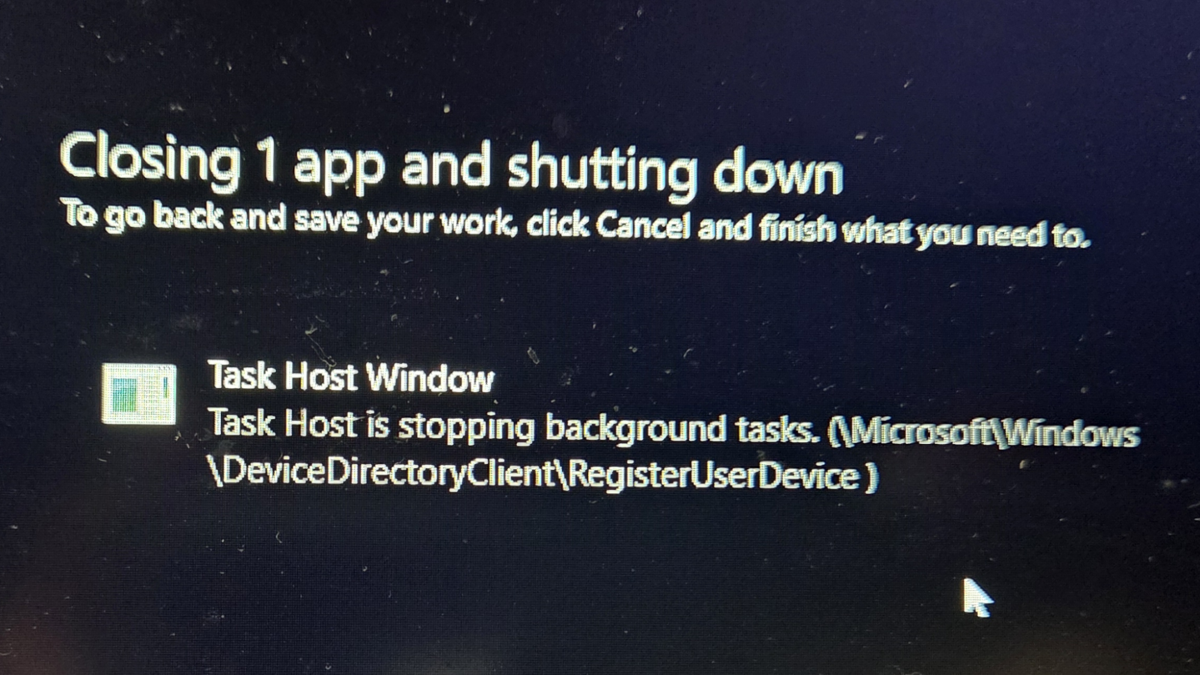
If your PC shows a “Closing 1 app and shutting down” message that lists Task Host Window as the app that needs to close, it means Windows is still trying to finish a background task before powering off. The dialog often includes a note like “Task Host is stopping background tasks” with a reference to RegisterUserDevice under Microsoft’s Device Directory Client. In this guide, you will learn what Task Host Windows is, why Task Host Window prevents shutdown, and the steps you can take to stop the issue from happening again.
What is Task Host Windows?
Task Host Windows is a built-in Windows process that appears during shutdown when a background task has not finished running. You normally never see it while using your PC. It only shows up in the “Closing 1 app and shutting down” screen, where Windows lists it as the app that is stopping shutdown.
Even though it looks like a regular app in that dialog, it is actually a system process that checks whether any background tasks still need to close before the PC powers off. When Windows detects unfinished work, such as syncing user data, finishing a scheduled task, or shutting down a device registration service, Task Host Window becomes the placeholder that Windows displays to you.
Windows shows this message so you can cancel the shutdown and avoid interrupting something that is still running in the background. It works similarly to the warning you get for unsaved documents. The difference is that in this case the “app” is a system process that manages tasks you usually cannot see.
In simple terms, Task Host Windows is not the cause of the problem. It is the warning mechanism Windows uses when a background task fails to close correctly.
Why Task Host Window prevents shutdown even when no apps are open
Task Host Windows appears during shutdown when Windows detects a background process that has not finished running. Even though you may not have any apps open, Windows still has scheduled tasks, sync services, and system processes running quietly in the background. If one of these tasks does not close properly, you see the warning that Task Host Window is preventing shutdown.
A common example is the task:
\Microsoft\Windows\DeviceDirectoryClient\RegisterUserDevice
This task handles user-device registration for Microsoft services. It usually shuts down quickly, but when it hangs, Windows pauses the shutdown process to avoid data loss or corruption. Because this task works behind the scenes, the message makes it seem like something mysterious is blocking the shutdown even though nothing is open on your screen.
This problem often behaves like a bug. Windows is supposed to close background tasks silently, but sometimes a task becomes slow, fails to release memory, or gets stuck after a system update or sign-in event. When that happens, Windows cannot shut down safely and Task Host Windows becomes the messenger.
These are the most common reasons you see the warning even with no apps open:
- A scheduled task triggered right before you tried to shut down
- A user profile or sign-in service that failed to close correctly
- A sync or authentication task that stayed active
- A Windows update process still running in the background
- A device registration task that froze or took too long to stop
In short, Task Host Window prevents shutdown because a background task is stuck, not because you did anything wrong. Once the underlying task is fixed or cleared, your PC will shut down normally again.
How to fix the issue
There are a few simple ways to stop Task Host Window from blocking shutdown. These fixes address the background tasks that tend to get stuck, especially after Windows updates or sign-in events.
1. Click “Shut down anyway”
When the “Closing 1 app and shutting down” screen appears, you will usually see a button labeled Shut down anyway. Clicking it forces Windows to close the task that is stuck. In most cases, this does not cause problems because the task is often a minor registration or sync service.
This option works as a quick fix, but the issue may return if the background task fails again.
2. Disable Fast Startup
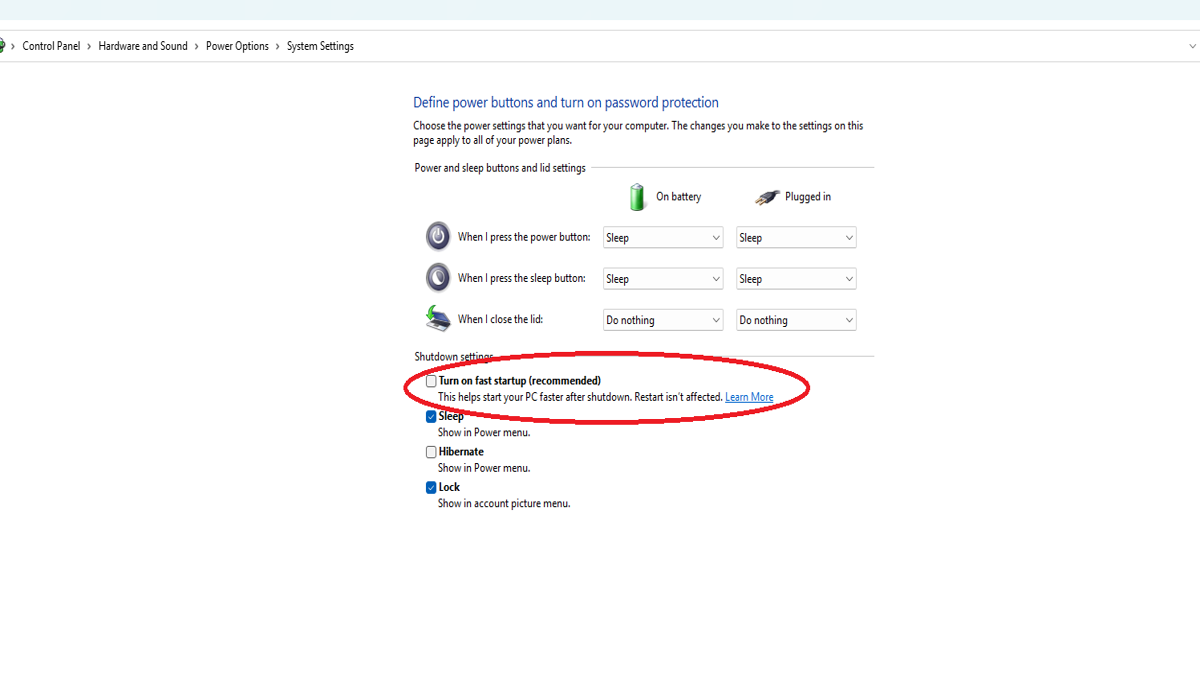
Fast Startup can cause some background tasks to remain half-active between shutdowns. Turning it off often prevents the Task Host Window message from appearing.
Here is how to disable it:
- Open Control Panel.
- Select Hardware and Sound.
- Click Power Options.
- On the left, select Choose what the power buttons do.
- Click Change settings that are currently unavailable.
- Scroll down to Shutdown settings.
- Uncheck Turn on fast startup.
- Click Save changes.
After turning off Fast Startup, restart your PC normally and test a shutdown.
3. Run the Windows Update troubleshooter
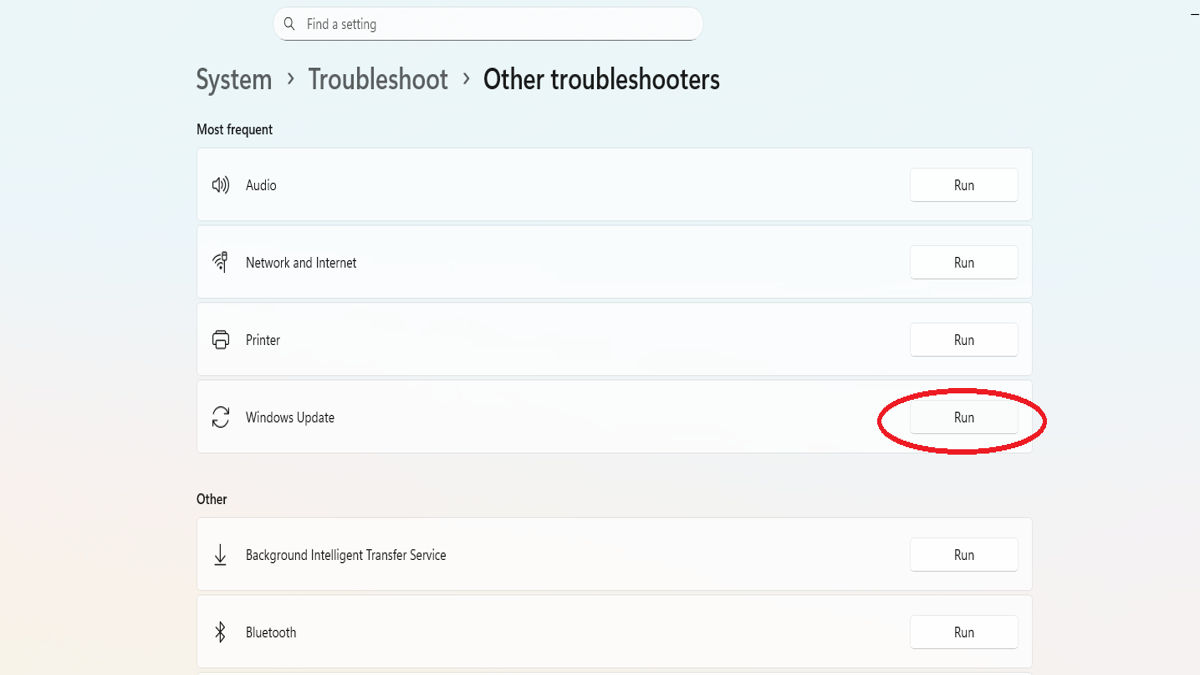
Sometimes the task that gets stuck is tied to a recent update. Running the Windows Update troubleshooter can clear out pending or corrupted update tasks.
Here is how to do it:
- Open Settings.
- Go to System.
- Select Troubleshoot.
- Click Other troubleshooters.
- Look for Windows Update.
- Click Run.
Let the troubleshooter complete, then restart your computer.
4. Check for pending Windows updates
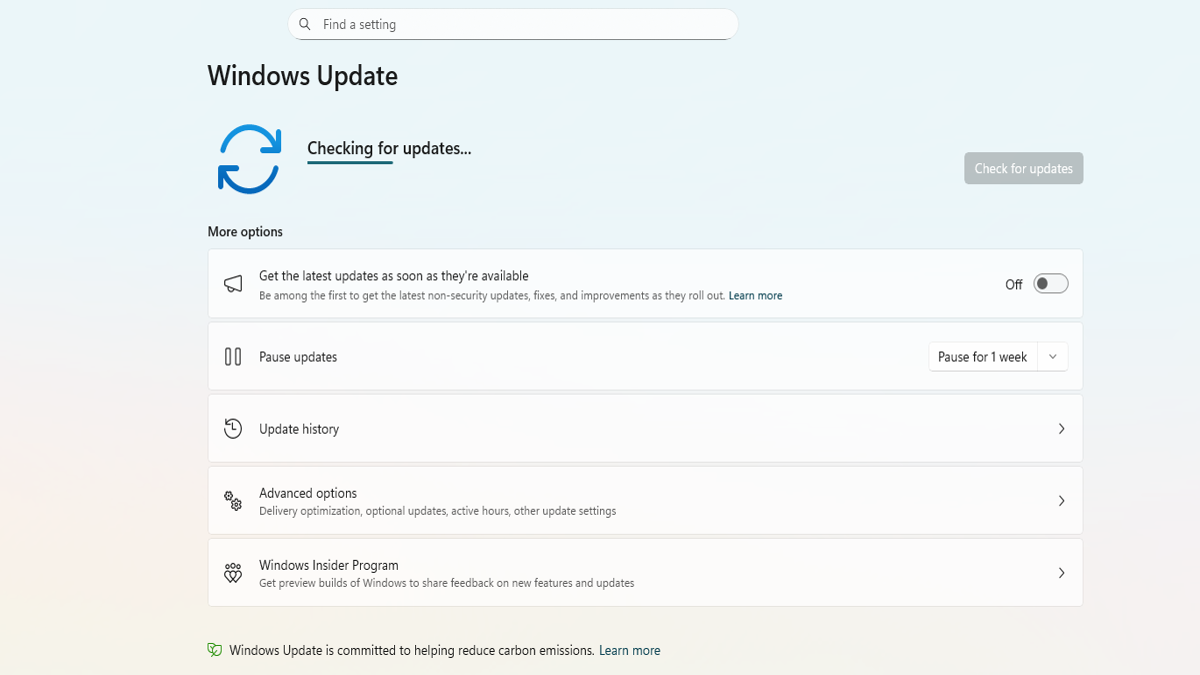
A stuck or incomplete update can cause background tasks to hang during shutdown. Installing the latest updates often clears the issue.
Here is how to check for updates:
- Open Settings.
- Go to Windows Update.
- Click Check for updates.
- Install anything that appears.
- Restart your PC when the update completes.
If an update was waiting in the background, installing it usually stops the Task Host Window message from returning.
Conclusion
The Task Host Window message can be confusing because it appears even when no apps seem to be running. In most cases, it simply means Windows is trying to close a background task that did not finish correctly. By trying the fixes above, such as disabling Fast Startup or running the Windows Update troubleshooter, you can usually prevent the message from appearing again. Once the underlying task is cleared, your computer should shut down normally without interruptions.
FAQ
What is Task Host Windows?
Task Host Windows is a built-in Windows process that appears during shutdown when background tasks are still running. It helps Windows safely close services such as syncing, scheduled tasks, or device registration before the computer powers off.
Why does Task Host Window prevent shutdown?
Task Host Window appears when a background task has not finished closing. Even if you do not have any apps open, Windows still runs system services in the background. If one of them becomes slow or stuck, Windows pauses shutdown to avoid potential data loss.
Is Task Host Windows a virus?
No. Task Host Windows is a legitimate Windows system process. It is part of the operating system and is used to manage background tasks during shutdown.
Can I click “Shut down anyway”?
Yes. Clicking “Shut down anyway” forces Windows to close the remaining task and continue shutting down. This usually does not cause problems, but if the message appears frequently, it is better to fix the underlying background task.
What is the easiest way to stop the message from appearing?
One of the most common fixes is disabling Fast Startup in the Windows Power Options menu. Fast Startup can sometimes leave background tasks partially active between shutdowns, which causes the Task Host Window message to appear.
Can Windows updates cause the Task Host Window message?
Yes. Pending or incomplete Windows updates can cause background tasks to hang during shutdown. Installing the latest updates or running the Windows Update troubleshooter often resolves the issue.
Recommended Products