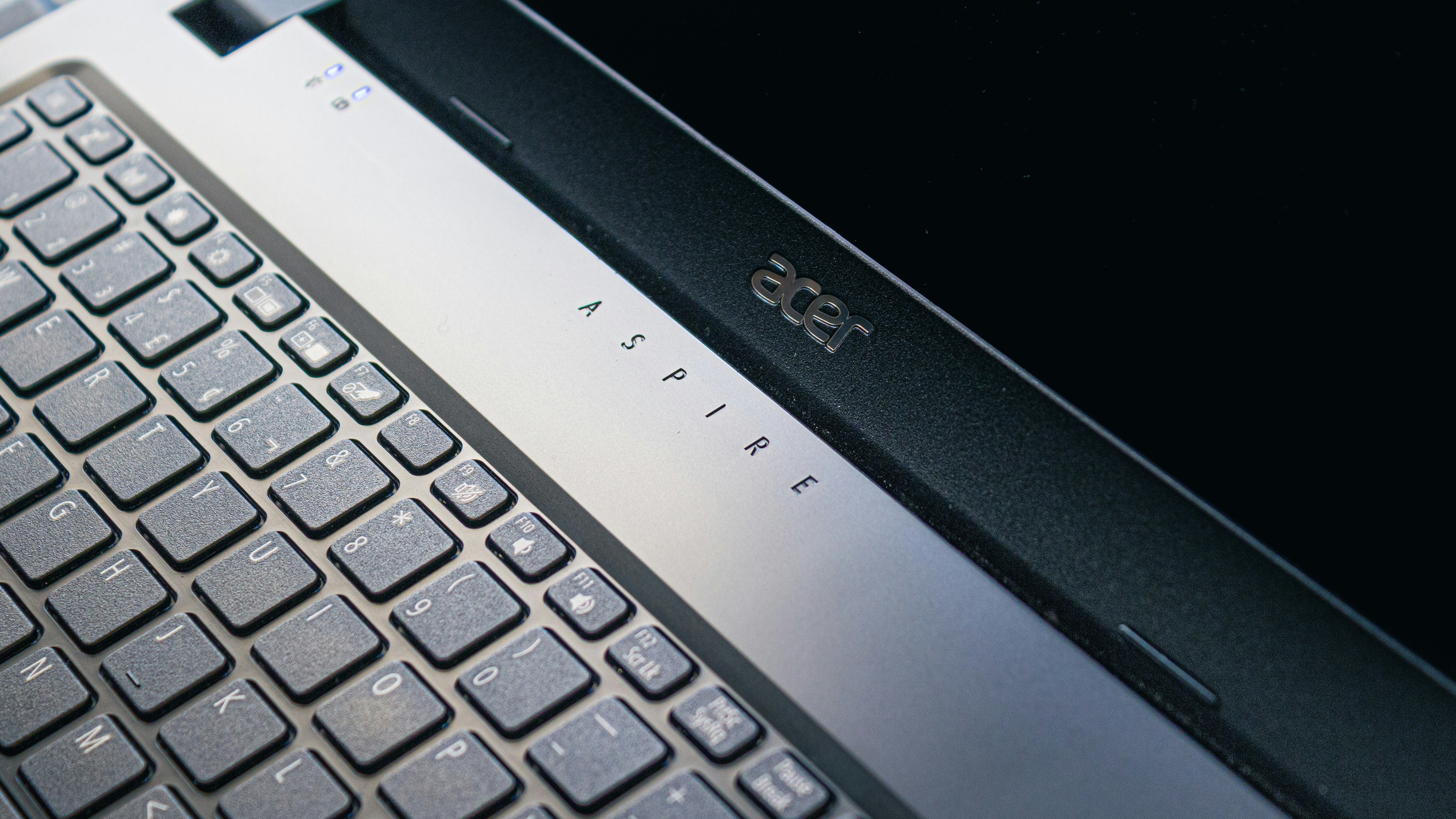
Choosing the right laptop depends on your needs, budget, and priorities. Consider factors such as performance, RAM, storage, display quality, battery life, and portability based on how you plan to use your device. Compare specific configurations rather than model names alone, and consider certified refurbished options for better value. Ultimately, the best laptop is one that delivers reliable performance for your everyday tasks without unnecessary spending.
The right laptop is the one matched to your workload, not the one with the largest spec numbers on the box. Buy more than you need, and you pay for performance that sits idle. Buy less, and your essential apps hit a wall on day one.
This guide covers how to choose a laptop for home use, work, gaming, graphic design, and video editing. It explains which CPU, RAM, SSD, screen, and battery specs actually matter, how to read refurbished deals, and what to check before you commit. Each section answers one decision, in the order you need to make it.
Rule of thumb: for most users, 16 GB of RAM and a 512 GB SSD are sensible starting targets. The rest depends on what you actually run.
Step 1: Define Your Needs and Set a Budget List your daily tasks and your most demanding app Start with your workload, not the spec sheet. One task determines your minimum requirements: the most demanding thing you run regularly. Everything else follows from that.
Work through this checklist before comparing any laptops:
Daily tasks: browsing, email, documents, spreadsheets, streaming, video calls, and schoolwork.Demanding tasks: large spreadsheets, many browser tabs, coding tools, virtual machines, photo editing, video editing, 3D work, or PC games.Files and peripherals: locally stored photos or videos, external displays, printers, a mouse, or portable drives.Home use typically starts with browsing, documents, and calls. A budget laptop handles this well when it has an SSD. Accept only 4 GB of RAM, a spinning hard drive, or a low-resolution screen, and you create bottlenecks that a little more money would have avoided.
Work laptops split into two groups. Office apps, email, and browser-based tools run fine on a mainstream configuration. Developers compiling code, running containers, virtual machines, or local databases need more memory, storage, and sustained CPU performance than a browser worker ever will.
Creative and gaming workloads change the requirements entirely. Video editing and graphic design mean checking that your specific apps run on the platform you choose, then planning for stronger graphics performance. Gaming means knowing which titles you play and what resolution and frame rate you want.
Choose an operating system that matches your required software Pick the operating system after you list your required apps, not before.
OS
Strengths
Limits
Windows
Widest app and hardware support
Heavier on RAM and storage than ChromeOS
macOS
Strong creative tools, tight hardware integration
MacBooks only; no choice of hardware
ChromeOS
Fast, lightweight, low maintenance for browser work
No Adobe Creative Suite; limited desktop Office support
If you need Linux tools, decide whether you will buy a Linux machine or install Linux yourself. Test any essential legacy Windows apps before choosing an Arm-based Windows laptop, because some do not run natively on that platform.
Tip: Check the exact system requirements for every app you depend on before committing to an OS. A laptop that cannot run your tools is not a bargain at any price.
Set a budget for the whole setup, not just the laptop The laptop price is not the final cost. Reserve part of your budget for software, a sleeve, a mouse, adapters, external storage, or a monitor before you set a spending ceiling.
Budget laptops generally fall between $200 and $800. Mainstream business models run from roughly $500 to $2,500. A lower price works for light use, but cutting the budget by accepting a configuration that cannot run your required apps costs more in the long run. If a new model exceeds your limit, manufacturer-certified refurbished laptops offer tested hardware with a warranty and are worth comparing directly.
Step 2: Choose Laptop Specs You Will Actually Use Specs only matter when they match your workload. This section covers the five components that determine daily speed, and what each one actually needs to do your specific tasks.
Compare CPU models and benchmarks, not just names The CPU model name tells you very little on its own. Cooling, power limits, and thermal configuration change how fast the same chip runs in different laptops. Look up benchmarks for the exact laptop model, not just the processor. Pay more for a faster CPU only when your apps show a measurable gain in those tests.
Choose RAM for your workload and check upgrade options Start with 16 GB for a primary Windows machine. That covers everyday work, a full browser, and most productivity apps without slowdown. Step up when your workload demands it.
Workload
Recommended RAM
Browsing, email, documents, video calls
16 GB
Regular video editing, heavy gaming, local AI tools, large dev projects
32 GB
Data science, large virtual machines, professional 3D work
64 GB or more
Basic Chromebook tasks
8 GB (reaches limits in Windows)
Before buying, confirm whether the memory is soldered, slotted, or a combination of both, and what the maximum supported capacity is. Integrated graphics pull from system RAM, so extra memory can help on machines without a dedicated GPU.
Choose SSD storage based on your apps and files Always choose a laptop with an SSD as the primary drive. A hard drive slows everything: boot times, app launches, and file transfers.
Tip: treat 256 GB as the minimum, 512 GB as the practical target for games or large media files, and 1 TB if you store several large games or video projects locally. Modern games can exceed 150 GB each, so 128 GB requires constant juggling. Check whether the SSD slot is accessible for a future upgrade.
Decide whether your games or creative apps need a dedicated GPU Integrated graphics handle browsing, office work, streaming, light photo edits, and casual games. If your workload goes beyond that, the decision becomes clearer.
Demanding games, 3D rendering, CAD, or complex video timelines: compare dedicated GPU benchmarks and check your app's hardware requirements before buying.Browsing, office apps, and light creative work: integrated graphics are enough, and they keep cost, heat, and battery drain lower.Dedicated GPUs carry their own VRAM. Integrated graphics share system RAM. That distinction matters in GPU-accelerated creative apps, where VRAM size affects what you can process.
Pay for NPU features only when you will use them An NPU speeds up local AI tasks: transcription, background removal, real-time effects, and similar workloads. It does nothing for browsing, documents, or most standard apps. If those AI features are not part of your regular workflow, the NPU is not worth a price premium.
Step 3: Check the Features That Affect Daily Use Specs on a product page tell you what a laptop can do. The features in this step determine how comfortable it is to do it every day.
Choose screen size, resolution, and color quality for your tasks Screen size sets how much you can see at once. Use this as a starting point:
Screen size
Best for
13 to 14 inches
Commuting, travel, light daily work
14 to 15 inches
Mixed home and office use
16 to 17 inches
Timelines, split windows, creative work
Resolution matters most when you work with fine detail. A 1080p display is fine for documents and browsing. For photo editing and graphic design, match the resolution to your detail work rather than paying for 4K by default. For color-critical work, look for close to 100% sRGB coverage and an IPS panel.
Match weight and tested battery life to your travel needs Weight on the spec sheet and battery life in reviews are both worth checking, but they measure different things. Published weight tells you what goes in your bag. Tested battery life tells you how long it lasts under a specific workload, usually light browsing at moderate brightness.
Screen brightness, graphics activity, and workload change runtime significantly, so browsing results do not predict gaming or long exports. Read independent tests run at conditions close to your own before trusting the manufacturer's hours claim.
Check ports, charging, and external monitor support Count your peripherals before buying: external drive, monitor, headset, card reader, and charger. Then count the ports.
A USB-C port's shape does not confirm its function. Some USB-C ports charge, some carry a display signal, some do both, and some do neither. Confirm each port's charging wattage and display output capability from the spec sheet before assuming.
Tip: If you plan to connect an external monitor, verify maximum resolution and refresh rate support. Not every USB-C port on every laptop drives a 4K display at 60 Hz.
Test the keyboard, touchpad, and webcam Do this in-store or during the return window. No spec sheet describes key travel, touchpad texture, or webcam sharpness accurately.
Type a paragraph, scroll a long page, and open the camera app. Reject cramped keys, a jumpy or imprecise touchpad, poor viewing angles, and blurry webcam output. These are daily friction points that no future software update will fix.
Step 4: Compare Deals and Buy With Confidence Price alone does not tell you what you are buying. Two laptops at the same price can differ in CPU generation, RAM amount, SSD type, display quality, warranty length, and seller reliability. Compare all of it before you pay.
Compare exact configurations and real prices across sellers Match listings by the manufacturer part number, then confirm CPU, RAM, SSD, display, OS, condition, warranty, and seller. After that, add tax, delivery, adapters, and any financing cost to find the real price.
What to check
Why it matters
Manufacturer part number
Confirms the exact configuration, not just the model family
CPU model
Same name, different suffix can mean very different performance
RAM amount and type
8 GB and 16 GB are not interchangeable for Windows use
SSD size and type
NVMe and SATA SSDs differ in speed at similar capacities
Warranty length and provider
Retailer warranty and manufacturer warranty are not the same
Seller type
Retailer and marketplace vendor carry different return risks
Reject a price when the configuration differs from what you need, even by one spec.
Weigh new budget laptops against refurbished models Refurbished does not mean used and resold as-is. A manufacturer-certified or Grade A refurbished laptop has been tested, repaired where needed, cleaned, and repackaged. That is a meaningfully different product from an untested private sale.
For a budget laptop, place a new entry-level model beside a certified refurbished mid-range model at a similar price. The refurbished unit often delivers a better screen, more RAM, or a faster CPU for the same spend. Prefer Grade A or manufacturer-certified units with warranties from 90 days to one year. Minor cosmetic marks are acceptable when the savings go toward a meaningful spec improvement.
Check repair options, seller reputation, warranty, and returns Read return and warranty terms before paying. Confirm who handles repairs, whether parts are available, and what return shipping costs. A retailer listing and a marketplace vendor listing can look identical but carry very different protections.
Check seller reviews for the specific listing, not just the storefront. Save the listing page, receipt, and return policy the day you order.
Test your main apps and battery during the return window The return window is your proof period. Use it.
Install your essential apps immediately and test Wi-Fi, webcam, keyboard, each port, the charger, the display, and any docking setup you plan to use. Battery capacity degrades with age, so on Windows run:
powercfg /batteryreport
Compare full-charge capacity with design capacity in the report. A significant gap on a new or certified unit is a reason to return it.
Tip: Keep the original packaging and note any factory-reset instructions before the return window closes. Both are harder to recover after the fact.
Conclusion: match the laptop to the work, then buy with confidence The spec sheet does not tell you whether a laptop is right for you. Your workload does. A processor tier, a RAM number, or a storage size only matters when it lines up with the apps you actually run and the tasks you actually need to finish.
Start with your most demanding task, confirm the OS supports your software, and set a budget that covers the full setup. Then compare exact configurations, not just prices. A certified refurbished unit with the right specs often beats a new laptop with the wrong ones.
Test everything during the return window. Check battery health, run your main apps, and verify every port. Keep the packaging until you are certain.
The laptop that serves you well for years is the one that was never over-specced for idle tasks or under-specced for the one job that matters most.
Recommended Products